
I’ve seen my fair share of content refresh automations in recent months. The problem is, they are too basic and don’t focus on the right metrics.
Anyone can set up an automation that scans Search Console and updates an article, but there’s more to it than that.
I’ve built several workflows that use multiple data points with AI to update content, and this is one of them.
More importantly, this is how you can do it for free within usage limits (aside from a ChatGPT or Claude subscription) because not everyone building has the budget for n8n, Zapier, APIs, and so on.
The version I use connects Google Search Console, Google Sheets, GitHub Actions, and a ChatGPT/Codex worker for the AI research and drafting stages. Google Docs holds the revised article for approval.
You can apply these principles to an n8n build or a Zapier workflow if you do use automation tools.
What Does an Automated Content Refresh Workflow Do?
An automated content refresh workflow scans published articles, finds pages worth updating, researches the likely cause of performance decline, and creates an update plan before drafting changes.
One challenge with sites that publish a lot of content is keeping everything up to date. It’s time-consuming, and for smaller teams, it prevents them from focusing on new content.
But it’s essential for SEO and now GEO/AEO to keep articles refreshed and accurate. That’s where AI automations can do a lot of the work.
My build is a mix of AI and human input with a full cycle from initiation to publication. This is a breakdown of what it does:
Step 1: GitHub Actions Collects Article and Search Console Data
The automation starts automatically through GitHub Actions (so it doesn’t incur API costs).
My setup schedules two runs a day: one prepares jobs, and a later run processes completed results.
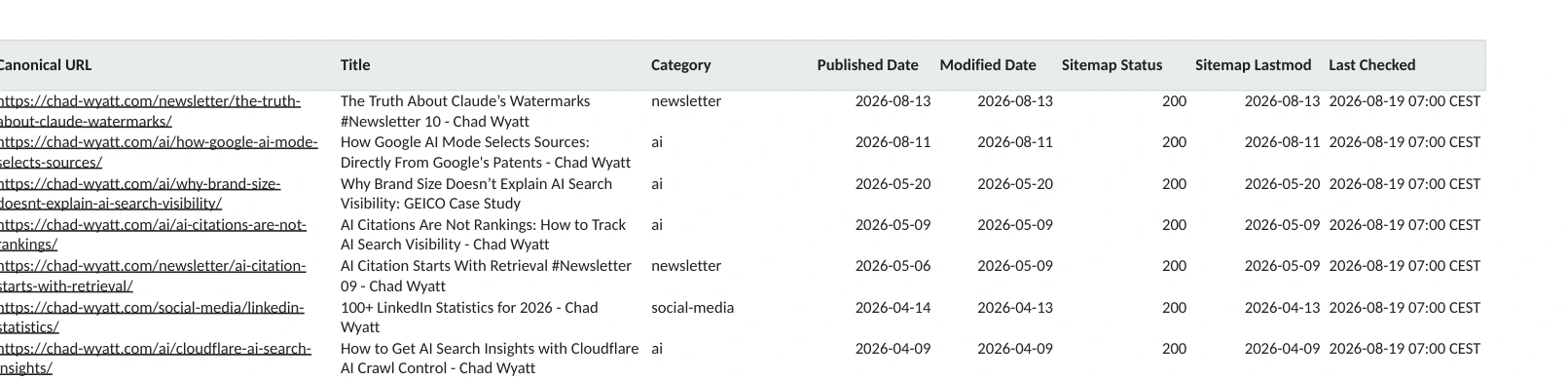
It reads the published article list held in the Content Inventory tab of Google Sheets. That list stores each article's canonical URL, title, category, publication date, and last-modified date, so the system knows which page the search data belongs to.
The Search Console collector retrieves clicks, impressions, CTR, and average position for the latest complete 28-day period, the preceding period, and the equivalent period a year earlier. It also collects the searches attached to each page.
Those results populate GSC Page Summary, which shows the performance comparisons, and GSC Query Detail, which shows the keywords behind them.
Everything is matched using the article URL and stamped with the date of the Search Console snapshot.
That gives the system both performance data and content history, without exporting reports manually.
This stage is more about gathering the data behind the content. No articles are selected for updating or changed on the website.
Step 2: The System Scores Pages to Prioritize Content Updates
Once the data is updated, a scoring script compares each page's latest numbers with the previous period. It calculates changes in clicks, impressions, CTR, and position, then writes an Opportunity explanation and a Priority Score beside the article in GSC Page Summary.
The goal is to build a shortlist with ideal articles for updating.
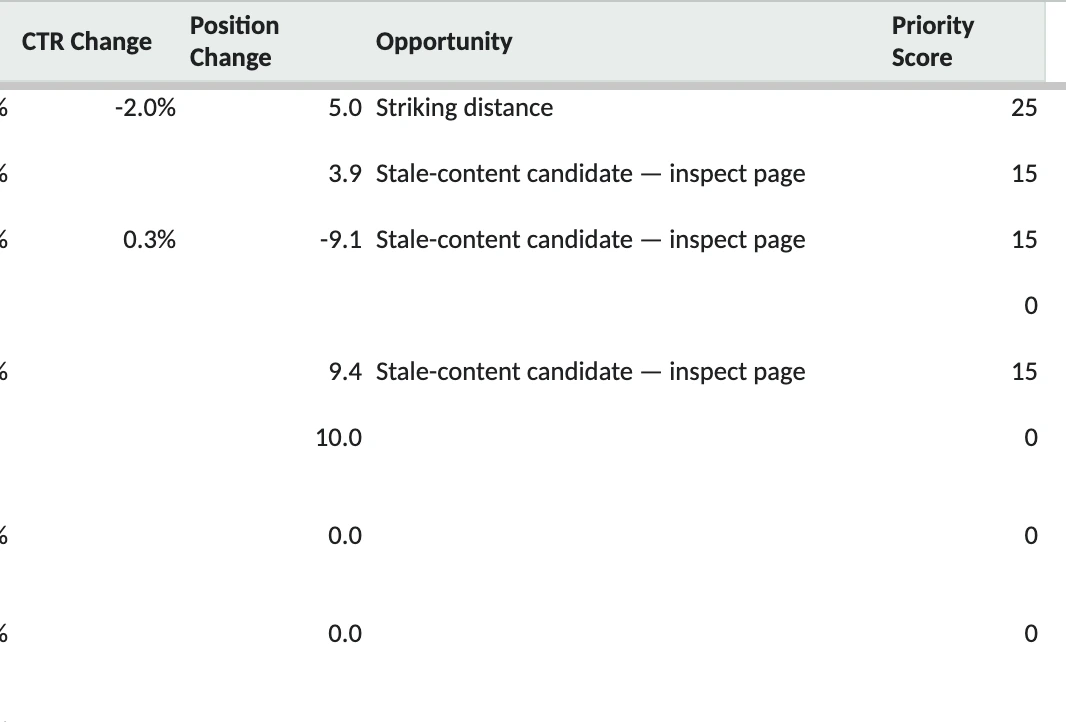
The rules in this build are weighted:
- A qualifying click decline of at least 25% adds 35 points, provided the page had at least 10 previous clicks and either impressions stayed at 80% or more of the earlier level or average position worsened by two places.
- A page ranking between positions 4 and 20 with at least 100 impressions adds 25 points.
- A CTR decline of 25% or more on a top-ten page with at least 100 impressions adds 20.
- Content at least 180 days old with enough impressions adds 15.
- Possible query overlap adds 10.
Scores stop at 100.
A higher score brings the page closer to the front of a research queue but doesn't mean the article needs rewriting yet. An article at position 12 may have room to improve without any recent decline, while an old article may have perfectly good information.
The score also doesn't calculate business value, so the editor can still manually select a commercially important article over a less valuable page with a similar score.
Step 3: AI Researches Shortlisted Pages and Their Search Queries
The automation uses the shortlisted URLs to prepare research jobs for the connected AI worker.
Each job includes the page's performance data, important queries, and a reference to the current published article.
There’s a tab called GSC Query Detail that contains up to ten queries per page, ordered by impressions, along with clicks, CTR, average position, and Page Count for Query.
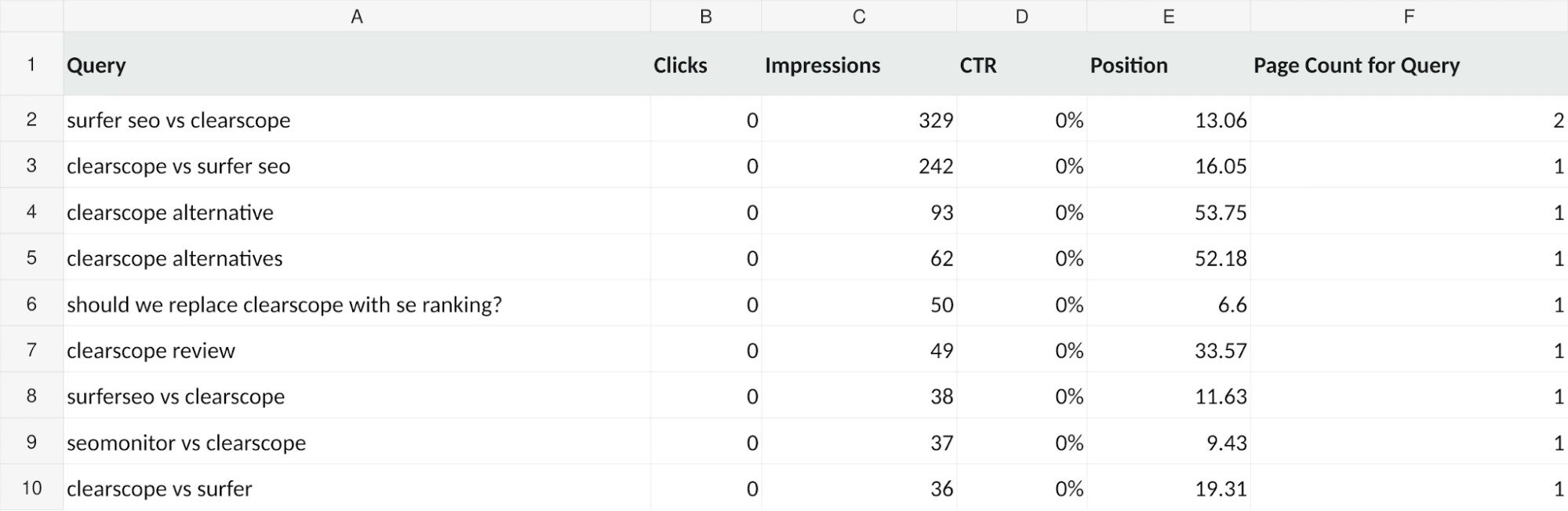
Those query records give the research a direction. For example, a comparison article showing hundreds of impressions and an average position near 13 for its main query needs inspection, but the numbers alone don't mean that its content is wrong.
The Page Count for Query field can also flag searches appearing for multiple URLs, so the system can investigate possible overlap rather than combining pages.
The AI research stage looks at the current article, relevant search results, competing page types, other articles on the site, and reliable sources for facts that may have changed.
It looks for problems like missing information, changing search intent, outdated statistics, or overlapping coverage - a list of criteria I built into this, which is based on SEO best practices and also GEO/AEO inclusions.
Then it identifies what may need updating in each article, explains the problem, and includes links to the sources supporting its findings.
If it can't confirm the issue or identifies a technical problem rather than a content problem, it flags the article for further investigation instead of recommending a rewrite.
Step 4: Google Sheets Receives an Update Plan and Waits for Approval
The research findings are turned into a recommendation in the Update Queue tab of Google Sheets. Each suggested article update has a row containing its URL, Priority Score, Opportunity Trigger, Search Console snapshot, important queries, diagnosis, and evidence links. The plan also identifies what the revised article should Preserve, Add, Rewrite, or Remove.

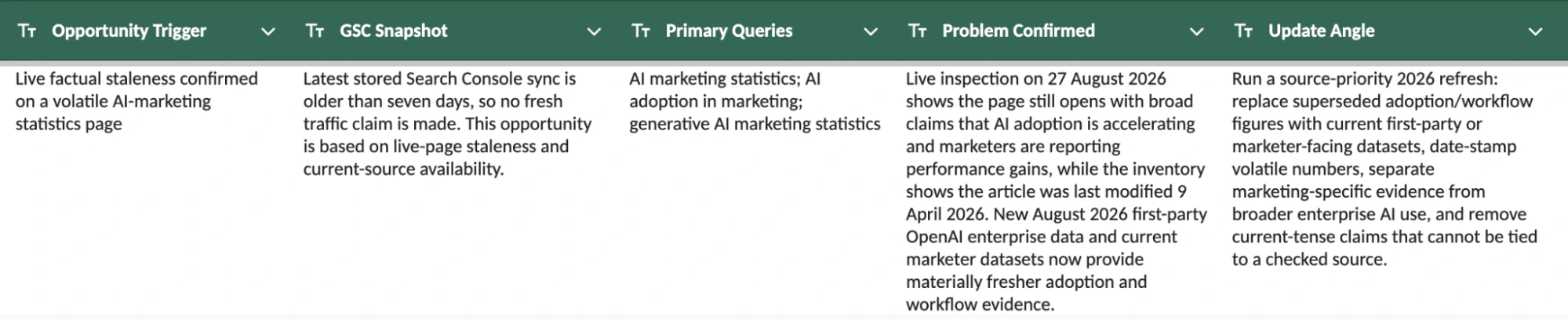

This is the part when a human enters the loop and was fundamental to my build of this sheet. It’s the “control center” where I can run everything.
Some of the key columns on this tab:
- Content ID (B): A unique identifier used to track the article through the workflow.
- Decision (C): Where you choose to Approve, Hold, or Reject the proposed update. New recommendations start as Pending. This tells the AI what to do next.
- Feedback / Why (D): Where you explain your decision or provide additional instructions for the AI. Feedback gets taken into a separate system that it learns from and doesn’t repeat the next run.
- Priority Score (E): A numerical score used to rank articles by their potential need for updating.
- Opportunity Trigger (J): Explains what prompted the review, such as declining performance, outdated information, or ranking opportunities.
- Problem Confirmed (M): Describes the specific content issue identified during research and the evidence supporting it.
- Update Angle (N): Explains the recommended direction for refreshing the article.
- Preserve (O): Identifies existing content that should remain unchanged.
- Add (P): Recommends new sections, information, or evidence to include.
- Rewrite (Q): Identifies sections that need improving or replacing.
- Remove (R): Flags outdated, inaccurate, duplicated, or unnecessary content for removal.
- Evidence / Sources (S): Provides links to research and sources supporting the proposed changes.
- Workflow Status (T): Shows where the recommendation is in the process, such as awaiting a decision.
You might be thinking this is a lot of fields, but the purpose here is to maintain control. AI does all the work and then hands over the task back to the human.
In this tab, I can edit the fields and change the targeted update, provide more direction, give feedback, and help AI learn for the next run. It takes 10 minutes a day.
The Decision column is what controls the next steps for the AI:
- Pending: The default state for my review.
- Approve: The suggestion is approved for the next automated stage.
- Reject: Suggestion not approved.
- Hold: Keep it there until feedback is addressed.
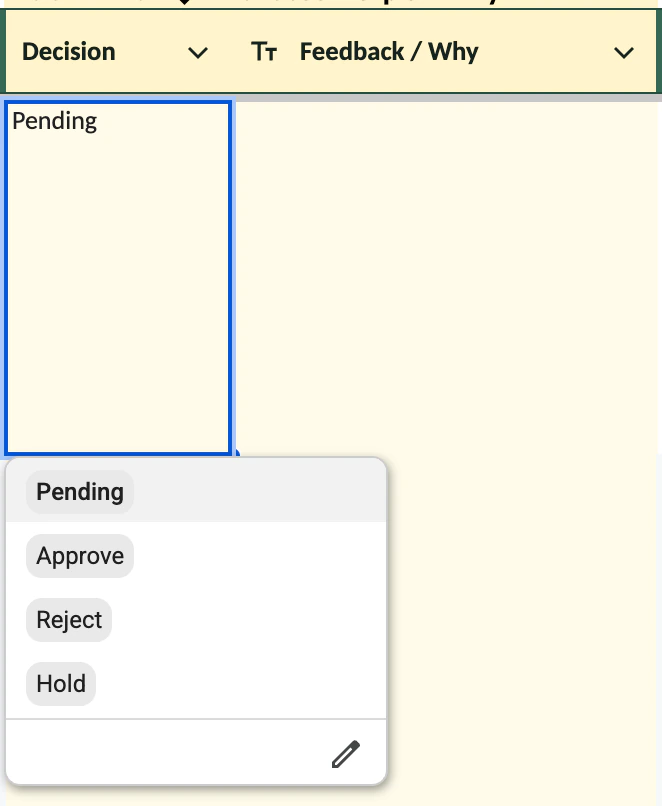
Everything entered into the Feedback/Why column is the instruction for the AI to learn from, to do in the next stage, to fix, or what it did well.
For example, I could change the status to “Hold” then put in the feedback box that the suggested update is too rigorous, not aligned with the search intent, has too many changes, not enough research, or anything to give it more direction.
Then, when it does the next run, if it sees the status has changed, it will action that item.
Step 5: An Approved Plan Becomes a Revised Google Doc
Approved proposals are passed into Approved Content, another Google Sheets tab. That record holds the editable outline, sources, article URL, the sections to keep or change, and the Next Action field.
This is again where a human can adjust the plan before asking for a draft, so the AI has specific instructions.
Similar to the last tab, the default state is pending and remains that way until I change the dropdown.
- Draft: This tells the AI to draft the update in a Google Doc.
- Revise: Revise the draft it created based on my feedback.
- Complete: The draft is complete so it can move to publish.
- Hold: Keep it there and action any feedback.
- Reject: Completely reject the idea and outline.
- Retry: Create a fresh new outline.
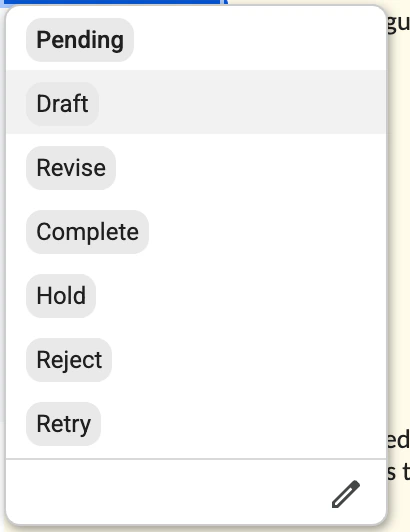
When Next Action is set to Draft, the automation prepares a new job for the AI worker. It includes the approved instructions and a reference to the current published article. My GitHub version also stores a hash of the source article so a changed original can be detected before the draft is processed.
The worker generates the proposed revision and returns its result to the pipeline. A later GitHub run processes it, creates or updates a Google Doc, and writes the document link and draft status back into Approved Content.
The draft starts from the existing article because sections, examples, citations, and internal links should survive an update unless the plan calls for their removal. This stage produces a Google Doc for review, with the revised sections and supporting evidence.
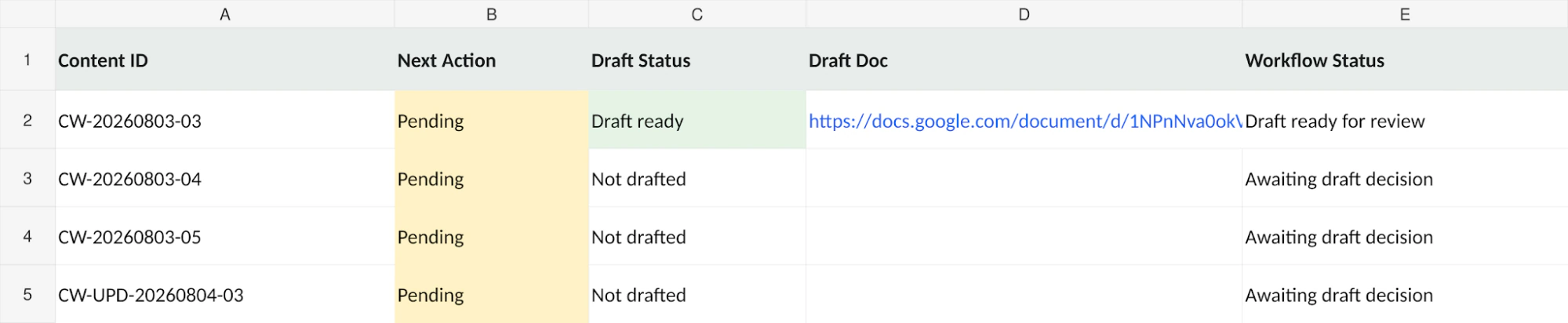
Step 6: A Human Reviews and Edits the Google Doc
Once the draft is ready, Approved Content displays its Google Doc link and review status. The workflow now hands the article back to the editor. The review covers the whole draft, including retained sections, new data, source links, headings, images, internal links, CTAs, and any title or meta-description changes.
There’s an example of that in the screenshot below:
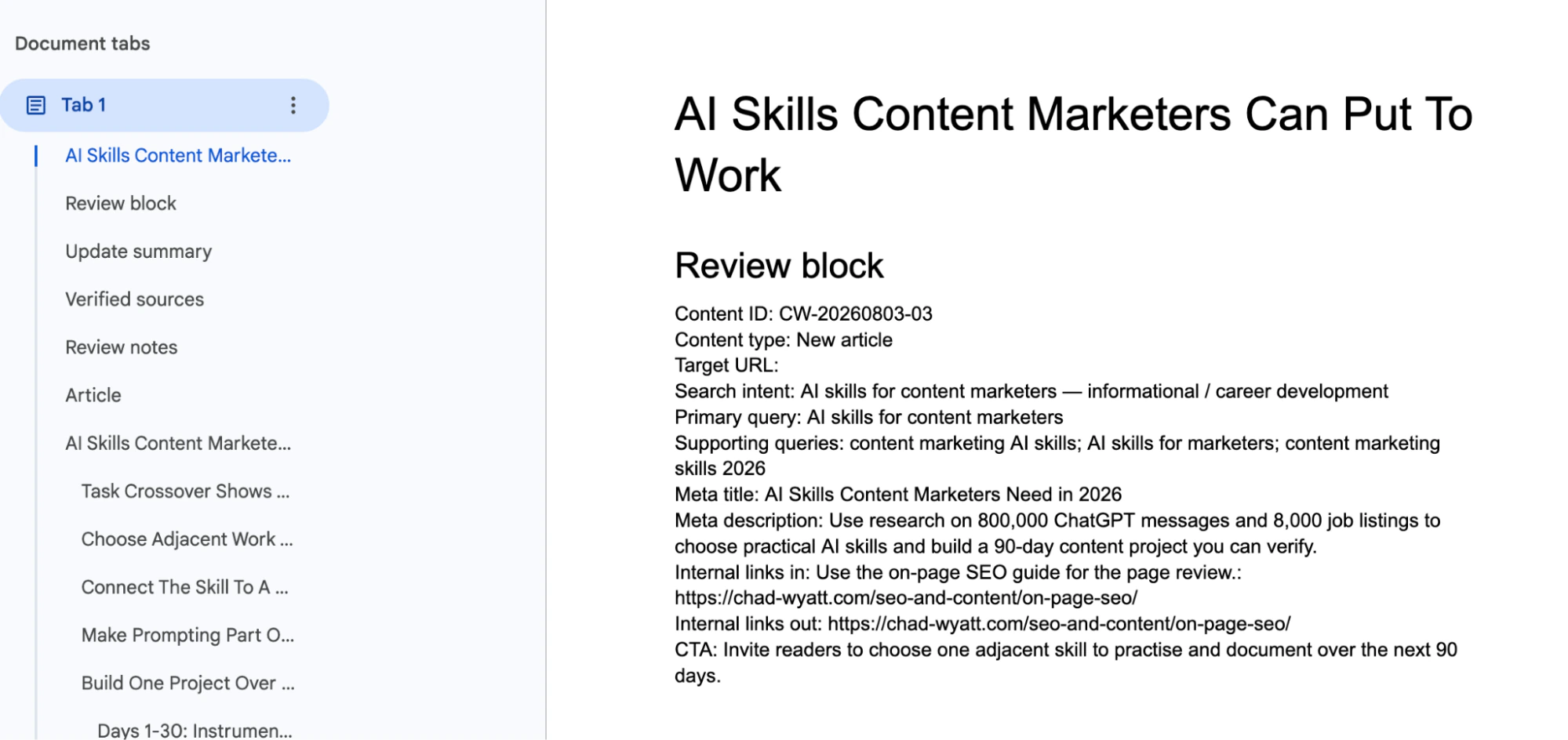
The editor makes corrections directly in Google Docs and can leave comments or provide feedback for another revision. If more AI changes are needed, the feedback can be passed back as a separate revision job. The system retains document versions and avoids replacing newer human edits with an older AI response.
This creates a second approval point. The earlier decision approved the research and update plan. The Google Doc review decides whether the proposed article is ready to publish. The automation can't make that final editorial judgment from the original priority score.
Step 7: AI Formats and Publishes the Approved Article
Once the Google Doc has passed human review and the item is marked Complete in Approved Content, the publishing stage can begin.
In my setup, the AI takes over from here. It uses prebuilt publishing skills and site rules to format the approved article correctly, including the headings, images, internal links, metadata, and other page elements. Those rules also tell it to update the existing article rather than create a duplicate.
My website is a static site deployed through Cloudflare. The AI updates the site's content files and the configured Cloudflare deployment process puts the new version live automatically. I don't have to copy the text into a CMS or publish it manually.
The human approval happens before this stage, so an unfinished draft can't be sent straight to the live website.
Other static sites, including ones built with Astro and deployed through Cloudflare or Vercel, can use a similar publishing process. WordPress needs a different connection.
The official WordPress MCP Adapter allows an AI agent to interact with a site, but it also needs post-editing tools and the correct permissions. Once those are enabled, AI can put the approved article into WordPress, format it for the block editor, update the existing post, and publish it after approval.
After publication, the automation records the updated URL, date, and changes in Google Sheets alongside the pre-update Search Console figures. The next scheduled data collection can then measure how the revised article performs.
Step 8: New Performance Data Starts the Next Refresh Cycle
GitHub Actions continues running after publication. The Search Console collector brings the next snapshot into GSC Page Summary and GSC Query Detail, so the system can check how the updated page is performing. Its previous snapshot and publication date provide context for that.
The review needs enough time for Google to recrawl the page and collect data. Clicks, impressions, rankings, CTR, and query changes should be compared using equivalent periods, with any change in search demand considered too. Traffic improving after publication is good to record, but it doesn't prove that one update caused it.
If the latest figures indicate another problem, the page can re-enter the research and approval process. If it's performing well, it stays out of the update queue.
Meanwhile, the scheduled checks continue for the rest of the content library, with the collection, research, planning, drafting, human editing, and publication as a repeatable cycle.
How to Build This Content Update Automation
This is the initial build I did for the automation, more of an MVP. I have since iterated on that and brought in more logic, a brain behind the operation, and improvements on the stages.
These steps give a brief overview of building the entire workflow - not every single detail, as most people will use AI to support the build.
If you want Codex or Claude Code to handle the whole build, use this prompt:
# Build My Complete AI Content Refresh Automation

You are an experienced software engineer and AI automation specialist.

I want you to build a complete, working content refresh automation for my website using GitHub Actions, Google Search Console, Google Sheets, Google Docs, and an AI worker.

I am a marketer, not a developer. You must handle the technical implementation wherever you have access, explain any account setup I need to complete, and verify that every component works.

**Do not stop after creating example files or explaining how the system could work. Build, connect, and test it.**

## My setup

- Website URL: [WEBSITE_URL]
- Website platform: [WORDPRESS / ASTRO / OTHER / UNSURE]
- Website repository: [GITHUB_REPOSITORY / NOT YET CONNECTED]
- Search Console property: [PROPERTY / NOT YET CONNECTED]
- Google Sheet: [EXISTING_SHEET / CREATE NEW]
- AI worker preference: [CODEX / CLAUDE CODE / RECOMMEND]
- Deployment provider: [CLOUDFLARE / VERCEL / WORDPRESS / OTHER]
- Content and writing guidelines: [FILE OR LINK / HELP ME CREATE THEM]

Inspect my existing project and available connections first. Don't assume I use a particular framework, spreadsheet layout, or deployment method.

If you need a connection or permission I haven't provided, tell me exactly how to establish it.

Never ask me to paste passwords or authentication tokens into the conversation.

## What the automation must do

Build a system that:

1. Imports the published articles on my website.
2. Collects Search Console performance data automatically.
3. Scores articles to identify content refresh opportunities.
4. Uses AI to research flagged articles and explain what needs updating.
5. Adds recommendations and supporting evidence to Google Sheets.
6. Waits for me to approve or reject each recommendation.
7. Converts approved recommendations into article update briefs.
8. Uses AI to create revised versions of the existing articles in Google Docs.
9. Allows me to review, edit, and request further revisions.
10. Publishes approved content automatically to my website.
11. Records changes and monitors subsequent performance.

The process should run on a schedule without my computer staying on.

I should only need to review recommendations, provide feedback, and approve finished content.

## Build requirements

### 1. Google Sheets

Create or connect a Google spreadsheet with five main tabs:

- Content Inventory
- GSC Page Summary
- GSC Query Detail
- Update Queue
- Approved Content

Inspect existing headers if using my own Sheet. Otherwise, create a consistent structure.

Also create the hidden system tabs needed to manage AI jobs, results, processing attempts, source evidence, feedback, and document versions.

Include dropdowns for human approvals and protect those fields against automated overwriting.

### 2. GitHub Actions

Create a Node.js and TypeScript project with scheduled GitHub Actions workflows.

Separate data collection, scoring, research, drafting, and publishing.

Include a manual test trigger, execution logs, duplicate-job protection, retries, and an option to run without modifying production data.

Keep credentials in GitHub secrets and non-sensitive settings in configuration files or variables.

Explain where I need to enter each setting.

### 3. Search Console collection

Connect to my Search Console property and retrieve:

- Clicks
- Impressions
- CTR
- Average position
- Queries associated with each article

Compare the latest complete 28 days with the previous 28 days and a comparable year-earlier period. Allow for Search Console reporting delays.

Match the metrics to the correct published article URLs.

Store the latest data in the visible Sheets and maintain historical snapshots for before-and-after performance comparisons.

Account for missing, anonymized, or incomplete Search Console query data.

### 4. Opportunity scoring

Create a configurable scoring system with these initial rules:

- Click decay (+35): Previous clicks of at least 10, a decline of at least 25%, and either impressions remaining at least 80% of previous levels or an average-position decline of at least two places.
- Striking distance (+25): At least 100 impressions and an average position between 4 and 20.
- CTR deterioration (+20): At least 100 impressions, a top-ten position, and CTR declining by at least 25% from a nonzero baseline.
- Content age (+15): At least 100 impressions and 180 or more days since publication or modification.
- Potential query overlap (+10): A query with at least 20 impressions appears for multiple pages.

Cap scores at 100.

Record the reason each article receives points.

Let me change the thresholds later without editing application code.

The score is a research priority, not permission to rewrite an article.

### 5. Automated AI research

Connect an AI worker that can run unattended using an explicitly supported authentication method.

Prefer a supported Codex or Claude Code subscription-backed setup where available. Do not silently substitute a paid model API.

The worker must receive the article URL, complete existing article content, Search Console metrics, important queries, and research instructions.

It should examine current search results, search intent, competing content, internal article overlap, and the accuracy of important claims.

The worker must return a structured recommendation containing:

- Identified issue
- Supporting source URLs
- Important affected queries
- Recommended update angle
- Sections to preserve
- Sections to add
- Sections to rewrite
- Sections to remove
- Unresolved questions and potential risks

Validate the results before writing them into Update Queue.

Never fabricate evidence or automatically rewrite an article merely because its performance declined.

### 6. Approval and feedback

New recommendations should start as Pending.

Only Approve advances an item. Hold and Reject prevent progression.

Record my feedback and pass relevant instructions into subsequent AI jobs.

Create a feedback history. Repeated preferences may become proposed reusable rules, but permanent rules should require confirmation.

When I approve a recommendation, automatically create an editable brief in Approved Content.

### 7. Article drafting

Use the approved brief and the complete existing article to generate a revised Google Doc.

Preserve accurate content unless the approved plan instructs otherwise.

Include relevant sources and a change log.

Support these actions:

- Draft: Create the revised article.
- Revise: Apply feedback to the latest draft.
- Complete: Approve the article for publication.
- Hold: Pause processing.
- Reject: Stop the item.
- Retry: Restart a failed or rejected preparation stage when requested.

Create or configure a Google Docs destination folder and optional template.

Keep document version history and prevent AI from overwriting newer human edits.

### 8. Publishing

Inspect my website and use its existing content format and publishing process.

For a static website, update the appropriate article files, preserve the URL, format the content according to site rules, validate the build, and deploy through the configured hosting platform.

For WordPress, implement an authenticated integration with permission to edit and publish existing posts. If using MCP, ensure the required editing capabilities are available.

**Publishing must only run after I approve the final draft by marking it Complete.**

Test the entire publication process in staging before enabling production publishing.

Verify the published URL, canonical, metadata, internal links, images, headings, and site build.

Record the publication date, URL, changes, and pre-update Search Console baseline.

Include rollback and failure handling.

### 9. Editorial skills and quality rules

Create separate, editable instruction files for:

- SEO research and search intent
- Evidence and factual verification
- Content refresh recommendations
- Editorial briefing
- Article rewriting and preservation
- AI Search/GEO considerations
- Publishing and formatting

Allow me to supply my own brand voice, writing examples, banned phrases, and content rules.

Do not invent firsthand experiences or unsupported statistics.

### 10. Testing and acceptance

Test each individual component and then perform a complete end-to-end test using one sample article.

Demonstrate:

1. Article inventory imports.
2. Search Console metrics populate Sheets.
3. Scoring identifies an opportunity.
4. AI research produces a sourced recommendation.
5. Approval creates the article brief.
6. Draft creates a Google Doc.
7. Revision feedback updates the existing draft.
8. Complete approval authorizes publication.
9. The article publishes correctly.
10. Historical metrics and publication details are saved.

Also test rejected recommendations, missing permissions, failed AI jobs, duplicate runs, changed source articles, failed builds, and rollback.

Do not enable unattended production publication until these checks pass.

## How to proceed

Work in stages:

**First:** Inspect the existing website, repository, Google setup, and available AI worker authentication.

**Second:** Produce a concise implementation plan identifying the files, services, and connections needed. Distinguish existing components from new ones.

**Third:** Build the system, including the scripts, workflows, configuration, Sheets structure, and AI integration.

**Fourth:** Run automated tests and verify each connected service.

**Fifth:** Run an end-to-end staging test.

**Sixth:** Explain any remaining manual authorization steps and obtain my explicit approval before enabling live automated publishing.

Do not repeatedly ask me to make technical decisions you can reasonably resolve from the repository and documentation.

Do not claim a connection, AI worker, deployment, or background automation is functioning without a successful test.

If an integration cannot be completed with the available access or subscription, identify the exact blocker and the options for resolving it.

When complete, give me:

- The implemented files and their locations.
- The required account connections and configuration.
- A summary of successful and failed tests.
- What still requires my action.
- How to start, pause, and troubleshoot the automation.
- How to confirm that a content refresh completed successfully.

The result must be a usable automated system, not just a collection of disconnected scripts.
Otherwise, you can do parts manually and prompt AI where necessary - I have included prompts for each stage.
A couple of notes:
- Keep using the same project and repository so each new stage builds on the previous one.
- Change any of these steps to match your own workflow - this is how I work, so it’s different from how you might.
- You can code a nice-looking wrapper over this and have all these steps work in the background with a “CMS” interface to run it.
- This build doesn’t include the skills and brain builds that agents use to understand search intent, research, write, and so on. But I recommend you build skills and instructions for every single step to ensure it’s being accurate and effective.
What You'll Need to Build This Automation
You don't need to know how to code everything yourself. You can use Codex or Claude Code to create the scripts, connect the services, and test the automation.
Before starting, you'll need:
- A Google account: With access to Google Search Console for your website and permission to create Google Sheets and Docs.
- A Google Cloud project: To enable the Google APIs that connect Search Console, Sheets, Docs, and Drive.
- A GitHub account: To store the automation's code and run it on a schedule through GitHub Actions.
- An AI coding assistant: Codex or Claude Code to build and configure the system. It should have access to your coding project so it can create files and run tests.
- An AI worker: Codex, Claude Code, or another supported AI service to carry out the research and drafting automatically once the system is built. Your coding assistant will help configure this separately.
- Access to your website: For a static website, you'll need access to its source code and deployment platform, such as Cloudflare or Vercel. For WordPress, you'll need an authorized connection that can edit and publish posts.
One important tip: Keep using the same coding project as you complete the steps. Your coding assistant needs access to what it created earlier so the next stage connects to the existing system.
The Google Sheets tabs will be your control panel. Once the automation is running, you should only need to review its recommendations, provide feedback, and approve articles. The data collection, research, drafting, and publishing are handled automatically.
1. Create Your Content Library in Google Sheets
Create a Google Sheet (name it whatever you like) with five tabs:
- Content Inventory: canonical URL, title, category, published and modified dates, sitemap status, last checked.
- GSC Page Summary: clicks, impressions, CTR, position, percentage changes, Opportunity Flags, and Priority Score.
- GSC Query Detail: page URL, query, clicks, impressions, CTR, position, page count, snapshot date.
- Update Queue: URL, score, diagnosis, queries, evidence, proposed edits, Decision, and Feedback / Why.
- Approved Content: editable brief, sources, Preserve/Add/Rewrite/Remove, Next Action, Draft Doc, and status.
These are the five tabs you'll use to manage the workflow. The coding assistant will also create hidden tabs to track AI jobs, results, feedback, article versions, and processing errors. You won't normally need to edit those.
The prompts use these tab names as examples. If you already have a spreadsheet with different names, the coding assistant should inspect it and use your existing structure rather than create duplicates.
Put headers in row 1; Update Queue may start at row 4. Normalize canonical URLs so the same page isn't counted twice.
Import published URLs from your sitemap; exclude archives and search pages. A scheduled check can maintain URLs and modified dates. You can ask AI to fetch your sitemap and populate this to save time.
Create or validate a Google Sheets content-refresh workbook with these tabs: Content Inventory, GSC Page Summary, GSC Query Detail, Update Queue, and Approved Content. Generate the header schema and setup script. Inventory needs canonical URL, title, category, and publish/modified dates. The GSC tabs need dated page metrics and query details. Update Queue needs evidence, Preserve/Add/Rewrite/Remove, Decision, and Feedback / Why. Approved Content needs the brief, Next Action, Draft Doc, and status. Include sample rows, column validation, and safeguards so automated updates don't erase editorial decisions. Also create the hidden system tabs needed to track articles, queued AI jobs, returned results, processing attempts, source evidence, feedback, and document versions. Define the exact column headers and status values. Protect human-editable approval and feedback fields from automated overwrites. If a spreadsheet already exists, inspect its headers and adapt the scripts to it rather than assuming fixed column positions. Return a list of the created tabs and confirm the setup with a test record.
2. Set Up GitHub Actions to Run the Content Refresh Automation
Create a private GitHub repository to store the automation's code. Your coding assistant will create the scripts and GitHub Actions workflows inside it.
GitHub Actions runs these scripts on GitHub's servers, so your computer doesn't need to stay on. GitHub provides an allowance of included Actions minutes, although charges can apply if you exceed your plan's limits. AI usage costs depend on the service and authentication method you choose.
The repository needs:
.github/workflows/content-refresh.yml: schedule runs and addworkflow_dispatchfor manual tests.- Configuration: Sheet ID, Search Console property, date windows, tab names. Keep credentials in secrets.
The following steps cover the collector, scoring, research, drafting, and publishing modules that your coding assistant will add to this repository.
Build these using Node.js or a coding assistant. Separate data, research, drafting, and publishing so failures can't bypass approval.
Create a Node.js GitHub repository for my automated content refresh system. Include modules for sitemap inventory, Search Console collection, scoring, AI research, Google Docs drafting, and site publishing. Add .github/workflows/content-refresh.yml with a daily schedule, workflow_dispatch, and DRY_RUN=true. Store [SITE_URL], [PROPERTY], and [SHEET_ID] in configuration and credentials only in GitHub secrets. Include sample-data tests and a README with commands to run and verify every stage. No publishing without Complete approval. Inspect the connected GitHub repository before creating files. If no repository exists, guide me through creating and connecting one. Create separate configuration, data collection, AI worker, editorial workflow, and publishing modules. Include a README explaining where each setting goes, which accounts must be connected, what credentials are required, and how to run a test. Do not include my website URL, spreadsheet ID, or personal account details as hardcoded defaults.
3. Connect Google Search Console, Sheets, and Docs
Use a Google account with access to Search Console and edit permissions on the Sheet and draft Docs.
- In Google Cloud Console, create or select a project.
- Enable Search Console, Sheets, Docs, and Drive APIs under APIs & Services > Library.
- Configure the OAuth consent screen in Google Auth Platform.
- Create an OAuth client and obtain its ID, secret, and offline refresh token for unattended jobs.
- Authorize required scopes, including read-only Search Console. Never store tokens in code or Sheets.
Google's OAuth 2.0 Playground can generate an offline refresh token using your client credentials. Add the Playground redirect URI, authorize scopes, and exchange the code. Check consent and publishing settings because testing-mode tokens may expire.
Under GitHub > Settings > Secrets and variables > Actions, save GOOGLE_CLIENT_ID, GOOGLE_CLIENT_SECRET, and GOOGLE_REFRESH_TOKEN. Test with a separate Sheet first; some private-repo protection features require a paid plan.
The coding assistant should test each Google connection before building the remaining stages. It needs to confirm that it can read Search Console data, access your spreadsheet, and create a test Google Doc in the intended Drive folder.
Connecting Google doesn't automatically connect the AI worker. That separate connection is covered in Step 7.
Create authentication and connection checks for my Node.js GitHub Actions project. Explain how to enable the Search Console, Sheets, Docs, and Drive APIs in Google Cloud, configure OAuth consent, create an OAuth client, and obtain an offline refresh token. Use only the scopes needed for Search Console reading, Sheet updates, and draft Doc creation. Read GOOGLE_CLIENT_ID, GOOGLE_CLIENT_SECRET, and GOOGLE_REFRESH_TOKEN from GitHub Actions secrets. Never log credentials. Include tests for property access, Sheet access, Doc creation, expired tokens, and permission errors. Show the setup steps without asking me to paste secrets into chat. Ask me to complete any Google authorization steps that require my account. Create configuration for the spreadsheet ID, Search Console property, Google Docs template, and destination folder. Verify each connection using the authenticated account and show whether it passed or failed. Never request that I paste credentials into the conversation. Explain exactly which GitHub secret or variable each value belongs in.
4. Schedule the Workflow and Test Each Stage
Your coding assistant should now create a configuration file for the automation. This stores information like your Google Sheet ID, Search Console property, tab names, and scheduling preferences.
If you're using the example configuration in these prompts, it can create config/pipelines.yml. The Google Sheet ID goes into that file, while credentials are stored securely in GitHub Actions secrets. The Search Console property can be supplied through a GitHub Actions variable.
You don't need to write this configuration yourself. Ask the coding assistant to create it and show you exactly where to enter any values it can't obtain from the connected accounts.
Before enabling the daily schedule, run a test. If the automation can't access your spreadsheet, find a column, or connect to Search Console, it should explain the problem in the GitHub Actions log and stop without changing any data.
Schedule GitHub Actions at your own cadence (my system runs daily), and enable workflow_dispatch. Set DRY_RUN=true initially; isolate data collection from drafting and deployment.
- collect-gsc41s
- score-pages12s
- prepare-ai-jobs9s
- run-ai-worker4m 18s
- process-results15s
- publishskipped
Use GitHub > Actions > Run workflow. Check logs and Sheet changes for a few URLs before enabling test writes and then production writes.
Optional: a Google Sheets Apps Script menu can call GitHub's workflow_dispatch API. Store its scoped token in Apps Script properties, never in a Sheet cell.
Write a GitHub Actions workflow for a Node.js content refresh pipeline. Run data collection and scoring on a daily schedule and add workflow_dispatch for manual testing. Separate research-job preparation from processing returned AI results, drafting, and publishing. DRY_RUN must default to true, with no Sheet writes or live deployments until explicitly enabled. Fail on missing configuration, log each stage's outcome, and prevent any publish job unless an item is marked Complete. Include the YAML, configuration example, a dry-run test, and instructions for checking logs and testing a separate Sheet. Create separate scheduled stages for collecting data, preparing AI jobs, executing AI jobs, and processing their results. Make sure they run in the correct order. Add retries for temporary failures and prevent duplicate processing. Explain how to start a dry run from the GitHub Actions page. Demonstrate that the workflow stops without making changes when a required connection or configuration value is missing.
5. Build the Search Console Data Collector
Ask your coding assistant to create a Search Console collector using searchanalytics.query. Request page and page-query data for the latest complete 28 days, the previous 28 days, and the same period last year, allowing three days for reporting.
The collector populates GSC Page Summary and GSC Query Detail automatically, saves the data date, and identifies missing records. Low-volume queries may not appear in Search Console.
The automation should also save historical snapshots so previous performance isn't lost when the latest data replaces it. This allows you to compare an article's performance before and after an update.
Ask Codex to test URL matching, duplicate handling, and data freshness using sample rows before scheduling the collector.
Implement a Search Console collector in Node.js using searchanalytics.query. Request page metrics for the latest complete 28 days, the preceding 28 days, and the comparable year-earlier period, leaving a three-day reporting delay. Also request page-query records, keeping up to ten queries per article by impressions. Match results to Content Inventory by canonical URL, calculate clicks, impressions, CTR, and position changes, and write dated results into GSC Page Summary and GSC Query Detail. Handle pagination, duplicate URLs, missing/anonymous queries, incomplete data, and API errors. Provide tests against sample records before enabling scheduled writes. Store dated performance snapshots in a separate history table. Do not erase the baseline metrics needed to evaluate future article updates. Handle missing Search Console data without treating every missing query as zero traffic. Test the collector using real data from a small sample of URLs and verify that the figures match Search Console.
6. Have Your Coding Assistant Build the Scoring Rules
Next, have your coding assistant create a scoring system that ranks articles based on their Search Console performance. You can use the five rules below as a starting point or change them to suit your website.
The script should record the reason each article was flagged in the Opportunity column and calculate its Priority Score. This helps decide which articles the AI researcher should look at first.
Use five weighted rules:
- Click decay (+35).
- Positions 4–20 (+25).
- Falling CTR (+20).
- Content age (+15).
- Possible query overlap (+10).
The prompt below contains the thresholds and test cases.
Cap scores at 100. Test each rule with sample rows and make sure the script creates a shortlist without editing any article.
Create a scoring script using GSC Page Summary, GSC Query Detail, and Content Inventory. Write matched reasons to Opportunity and totals to Priority Score. Rules: click decay +35 when previous clicks >=10, drop >=25%, and impressions stay >=80% of prior levels (prior impressions >=10) OR position worsens >=2; striking distance +25 for >=100 impressions at positions 4–20; CTR decline +20 for >=100 impressions, position <=10 and CTR down >=25% from a nonzero baseline; content age +15 for >=100 impressions and >=180 days since modified/published; possible query overlap +10 for >=20 impressions on multiple URLs. Cap scores at 100. Test each rule and never change published articles or human approval fields. Make all scoring thresholds configurable so I can change them later without editing the script. Check the spreadsheet's headers before writing scores and use the existing Opportunity column if present. Handle missing or insufficient data without inventing values. Create tests for each scoring rule, including pages that shouldn't qualify. Do not automatically approve or rewrite articles based on their scores.
7. Connect AI Research to the Ranked Shortlist
Now you need to connect the system to an AI worker that can research articles automatically.
This is different from the coding assistant you've been using to build everything. The AI worker runs after setup, receives articles selected by the scoring system, researches them, and returns its findings to Google Sheets.
Your coding assistant needs to configure how that worker runs, how it receives article data, and how its results are returned. For example, you could use Codex or Claude Code running through a supported authenticated setup in GitHub Actions.
- Content ID
- CW-UPD-1022-01
- Problem
- Pricing section lists 2025 plans
- Preserve
- Comparison table, tool reviews
- Add
- 2026 pricing, AI features
- Rewrite
- Intro, pricing summary
- Remove
- Discontinued tool
- Evidence
- 3 source links
- Decision
- Pending
Set the worker's instructions to check search intent, competing results, internal overlap, and changing claims. It must return source links and an issue-specific Preserve/Add/Rewrite/Remove plan.
Have the pipeline validate the worker's response before populating Update Queue. Missing evidence should create a Hold status, not trigger a rewrite.
Build an unattended AI research integration for my GitHub Actions and Google Sheets content refresh system. Create one job per shortlisted URL in _AI Jobs with its article, GSC queries, performance changes, and content ID. Connect an AI worker that can check live sources, then receive structured findings in _AI Results. Validate evidence URLs, uncertainty, and section-level Preserve/Add/Rewrite/Remove recommendations before writing Update Queue. Never overwrite human Decision or Feedback / Why. Skip duplicates and stop with a clear error if the worker or source access isn't configured. Supply runnable code and tests. Implement the complete AI worker connection, not just the queue. First, inspect whether my chosen AI provider supports unattended execution using my existing subscription or credentials. If it does, configure its supported command-line or automation interface to run inside GitHub Actions. If it doesn't, explain the available alternatives and any additional costs before proceeding.

Create the worker schedule, authentication configuration, job-reading logic, model execution, live source retrieval, and result-submission process. Each job must contain the original article text, its URL, Search Console data, relevant queries, and research instructions.

The worker must return structured results with the identified problem, supporting source URLs, unresolved questions, and recommended article changes. Validate the result before updating the spreadsheet. Include retry handling, duplicate-job protection, and a working test that sends one article to the worker and writes its findings into Update Queue.

Do not consider this stage complete until it has successfully run without me manually copying prompts or results.
8. Build the Approval and Briefing Automation
Build an approval gate in Google Sheets: new proposals start Pending, while Approve advances them and Hold or Reject stops them. Later runs must retain the editor's Decision and Feedback / Why values.
The automation also saves your feedback so relevant instructions can be included in later AI tasks. You can build a separate feedback system to identify repeated preferences and turn approved ones into reusable rules.
Have the AI worker turn each approved recommendation into a brief in Approved Content, keeping the source links and sections to change. The system should carry this information over without another manual research step.
Use Next Action to route jobs: Draft generates the Doc, Revise applies feedback, and Complete releases the approved version for publishing. Failed checks or unsupported claims keep the item from advancing.
Build the approval and briefing stage using Update Queue and Approved Content. New recommendations start Pending; only an editor's Approve decision advances them. Hold and Reject must stop processing. Preserve Decision and Feedback / Why on every scheduled sync. When approved, automatically create an editable brief in Approved Content with the article URL, research evidence, and Preserve/Add/Rewrite/Remove instructions. Implement Next Action transitions for Draft, Revise, Complete, Hold, Reject, and Retry. Check evidence completeness and prevent duplicate briefs. Provide test cases showing that unapproved rows never reach the drafting or publishing jobs. Create a feedback history that records the original instruction, article, decision, and date. Include relevant previous feedback when preparing later research or drafting jobs. If the same preference occurs repeatedly, flag it as a potential reusable rule, but do not automatically turn every comment into a permanent instruction. Protect human approvals from being changed by scheduled scripts, and test that rejected or held items cannot advance.
9. Automate Google Docs Drafting and Revisions
Have your coding assistant connect Next Action to Google Docs. A Draft job uses the current article, approved brief, and writing rules to create a revised document, then saves its link and status in Approved Content.
The drafting system must start with the existing published article, rather than generating a completely new one from its title and keywords. If it can't retrieve the original content, it should stop and report the problem.
You can also give the AI worker your writing guidelines, preferred sources, formatting requirements, and editorial rules so it knows how to prepare revisions.
Build a revision loop so feedback triggers Revise and the worker checks the latest document version before editing. The human reviews the resulting Doc and makes any final corrections there.
Test that only Complete can start the publishing job; Pending, Draft, and Revise must stay unpublished.
This might require a few test runs to get right - you can ask AI to add a “Run” button into Google Sheets so you can actually trigger the run manually from the sheet while testing.
Build the Google Docs drafting and revision stage of my content refresh workflow. Use approved plans from Approved Content and start a job only when Next Action is Draft. Have the AI read the current article, approved section plan, source links, and writing guidelines, then create a revised Google Doc and return its link and status to the Sheet. Revise must apply recorded editor feedback to the latest version without overwriting newer human edits. Require a separate Complete approval before publishing. Supply OAuth configuration, working code, error handling, and tests proving an unapproved draft never publishes. Retrieve the complete original published article before drafting and record a hash or version identifier. Stop if the original article cannot be retrieved or has changed unexpectedly. Require the AI to preserve accurate existing content unless the approved plan instructs otherwise, and produce a change log showing what was added, removed, or rewritten.

Create a designated Google Drive folder for drafts and support an optional Google Docs template. Save a document version before AI revisions and prevent older AI jobs from overwriting newer human edits. Test the complete Draft → Review → Revise → Complete sequence using one sample article.
10. Connect Automated Publishing to Your Website
The final step connects the approved Google Doc to your website.
How you build this depends on the platform your website uses:
- Static websites (Astro, Hugo, Next.js static export, etc.): The publishing system updates the existing article files in your website's repository. If the site is deployed through Cloudflare or Vercel, the changes can trigger an automatic deployment.
- WordPress: You can connect a permissioned AI worker through MCP tools that support editing and publishing posts. The official WordPress MCP Adapter provides the connection mechanism, but the required post-editing capabilities must also be available and authorized.
Your coding assistant should inspect how your website stores content before building this stage. Give it your publishing rules for headings, images, internal links, metadata, categories, and preserving existing URLs.
The publishing workflow should run only after you've approved the final Google Doc and marked the article Complete.
- Content ID
- CW-UPD-1022-01
- Draft Doc
- Best CRM Software (draft)
- Next Action
- PendingComplete
- Approved
- Build
- Preview
- Live
Before enabling live publishing, test the process using a staging website or preview deployment. Check that the article looks correct, the existing URL still works, and the website builds without errors.
Once the live deployment succeeds, the automation should record the publication date and updated URL in Google Sheets, alongside the Search Console data collected before the refresh.
Implement approved-content publishing for my existing static website repository. Use Approved Content status Complete as the required release gate. Read the approved Google Doc and site publishing rules, locate the existing article file, apply headings, images, links, and metadata, preserve the page URL, and run the project's build checks. Deploy through the configured Git and Cloudflare process only after approval and successful staging tests. Record the live URL, publication date, and baseline GSC data in Google Sheets after deployment succeeds. Block publication on missing credentials, version mismatch, or failed checks. Include tests and explain an alternate WordPress MCP connection with post-editing permissions. First inspect my website's framework, content files, publishing process, and deployment configuration. Build the appropriate integration for my website rather than assuming Cloudflare or WordPress.

For a Git-based static site, preserve existing URLs, frontmatter, metadata, images, and internal links. Run the site's build and validation checks, test a preview deployment, and configure publication to the production branch only after Complete approval.

For WordPress, configure authenticated MCP tools or another supported integration with the permissions required to update and publish an existing post.

After publishing, verify the live URL, headings, images, internal links, canonical tag, robots directives, and metadata. Record the publication details and baseline Search Console metrics. Create a rollback method so a failed update can be reversed.

Do not claim publication succeeded unless the updated page is accessible on the live website.
Test the Complete Automation Before Using It
Before enabling scheduled publishing, ask your coding assistant to run a full test using one existing article.
The test should confirm that:
- Search Console data imports into Google Sheets and the article receives a priority score.
- The AI worker researches the article automatically and creates an update recommendation with sources.
- The recommendation waits for approval in Update Queue.
- Approving the recommendation creates a brief in Approved Content.
- Selecting Draft generates a revised Google Doc containing the original article and approved changes.
- Revising the draft preserves your feedback and previous edits.
- Marking the final draft Complete triggers the configured publishing process.
- The updated article appears correctly on the staging and live website.
- Google Sheets records the publication and saves the data needed for later performance comparisons.
Also test that rejected recommendations, unapproved drafts, failed builds, and missing credentials cannot trigger publication.
Once those tests pass, the automation is ready for scheduled runs.
Before you go - sign up to my newsletter for more workflows like this: