
Nano Banana 2 can keep brand consistency, but the result depends on the workflow. To achieve consistency when generating images with AI, it’s best to use the same approved references, a core prompt structure, and make edits from one base image instead of starting over each time.
As the quality of images using generative AI is getting better, combined with speed, more brands are adopting it into their workflow. But one of the main struggles here is maintaining that brand consistency throughout multiple campaigns and asset creation.
While Nano Banana 2 is very good at image generation, it’s not perfect and it’s not consistent unless you have a process in place.
If you’ve ever spent hours regenerating an otherwise perfect image just because the AI keeps messing up the logo or the spelling, you know exactly how frustrating this drift can be.
In this article, I will show you how to keep brand consistency using Nano Banana 2 for marketing – which can also be applied to other generative AI imagery.
TL;DR
- Lock Down Elements: Provide exact wording and strict font rules to stop text and logos from drifting.
- Build a Brand Input Pack: Gather approved references, exact text, and brand rules before you start prompting.
- Assign One Job per Reference: Use one reference strictly for the product, and separate references for characters or environments.
- Edit, Don’t Regenerate: Create one master asset, then make edits to the background or framing without starting from scratch.
Why Do AI Images Drift Off-Brand? (And How to Fix It)
AI images drift off-brand usually because the workflow changes too many inputs at once or doesn’t give the model a good target. In most cases, drift starts when the input uses weak references, vague instructions, fresh generations, and no review process.
The fix is to reduce variation in the inputs. Use approved references, describe the fixed brand elements, edit from one approved base image, and review the result before publishing.
- No approved reference image: Without a reference, the model will guess the product shape, label layout, colors, and style.
- Vague prompts: Instructions like ‘make it premium’ or ‘keep it on-brand’ are too open.
- Regenerating from scratch: This resets the model’s decisions. Even with the same prompt, framing, lighting, text, and proportions can change.
- Changing too much at once: If you change the text, aspect ratio, background, and style in one step, it becomes harder to control the result and harder to see what caused the drift.
- No QA step: An image can look good and still be wrong. Logos, text, colors, and packaging details still need a final check before the asset goes live.
How to Create a Brand Input Pack for AI Prompts
A brand input pack gives Nano Banana 2 a fixed set of visual rules to work from.
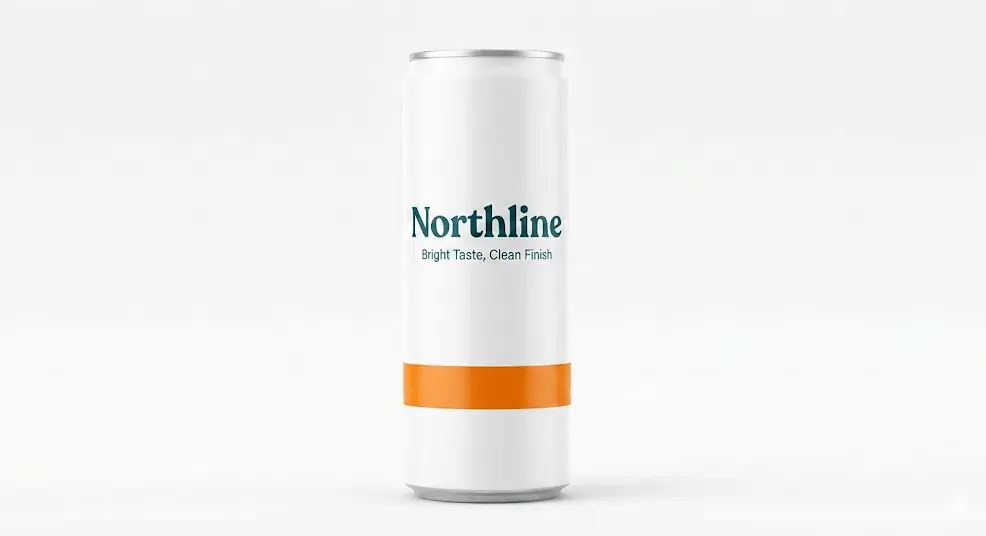
For this example, I created a fake brand called Northline Sparkling Water. The core product is a slim 12-oz can with a white body, deep teal logo, orange flavor stripe, and the tagline Bright Taste, Clean Finish.
You can also check out brand guidelines from Uber or Audi as an example.
Pick one hero reference
One hero reference gives the model a primary visual source for the product. That helps maintain consistency by allowing it to reference the same details.
Choose one approved image that shows the product clearly from the best angle. Use the version that shows the final packaging, logo, and color palette. Don’t use a draft render, an outdated package design, or a lifestyle photo where the product is partly hidden.
For example: With Northline Sparkling Water, the hero reference is a straight-on studio image of the can on a white background.
The can fills most of the frame. The teal logo is centered. The orange stripe wraps the lower third. The tagline sits under the logo in one line.
This image is then the primary product reference for every asset in the Nano Banana 2 campaign.
Add supporting angle and detail shots
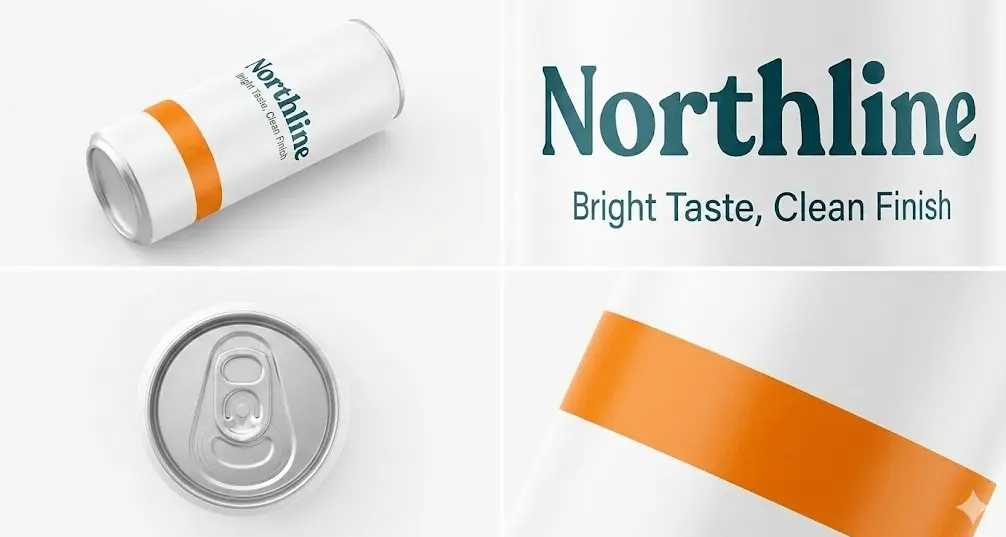
Supporting shots help to preserve details that the hero image doesn’t fully show. This improves consistency because one front-facing image may not capture the can top, the edge of the flavor stripe, the finish of the aluminum, or how the label curves around the side.
Add two to four supporting images that show specific visual details on your product. Include a side angle, a close crop of any text, a top view, and a material/detail shot of the product finish.
Each supporting image should have a clear purpose. Don’t use too many images that contain irrelevant visual details.
For example, the Northline input pack includes a 45-degree angle shot of the can, a close-up crop of the logo and tagline, and a top-down image that shows the silver tab and can rim.
The angle shot helps when the campaign needs the can tilted in a lifestyle scene. The close-up helps keep the label proportions stable. The top view helps when the can appears in flat-lay images.
Include logo files and exact text
Logo files and exact text reduce interpretation errors. AI models often get close to branding elements, but not exact. A logo may look similar but not match the approved mark.
The most common consistency issue is spelling, especially when images are text-heavy.
Include the approved logo file in the input pack and write out every required text element exactly as it should appear.
That includes the brand name, product name, tagline, CTA, flavor name, and any packaging copy that must remain unchanged. Use one approved version of each line. Don’t leave wording open to interpretation.
Example: the Northline pack includes the vector logo and a text sheet with:
- Brand name: Northline Sparkling Water
- Product line: Orange Citrus
- Tagline: Bright Taste, Clean Finish
- CTA for ads: Shop the Summer Pack
When prompting, the prompt doesn’t say ‘use the usual tagline’ or ‘add the CTA from the can.’ The prompt uses the exact wording from the input pack. That lowers the risk of text drift across ads and banners.
Add color codes, font notes, and rules
Many off-brand results come from small changes that seem minor in one image but become obvious across a campaign.
A logo starts moving toward a different color. The type looks condensed in one asset and rounded in another. The placement moves higher on the product. Each change breaks the output a little more.
Add the brand color values, simple font notes, and a short list of rules to your input pack. The rules should name the elements that shouldn’t move, change, or restyle. You can use a free tool like Adobe Color to help.
Example: the Northline pack includes:
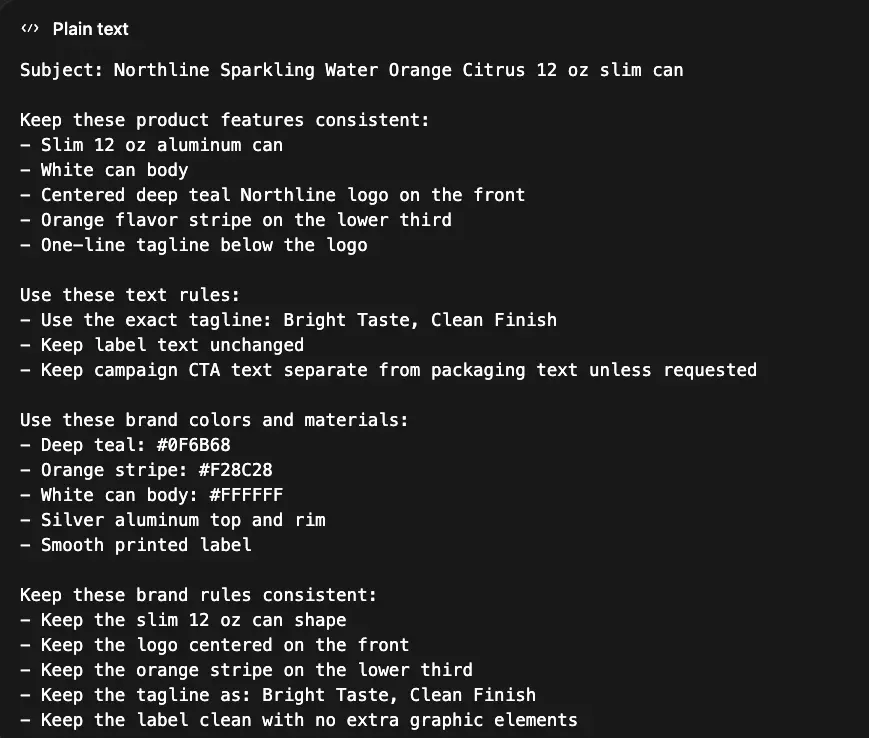
- Deep teal: #0F6B68
- Orange stripe: #F28C28
- White can body: #FFFFFF
- Font note: geometric sans-serif, medium weight for headline, regular weight for supporting text
Rules:
- Retain the slim 12 oz can shape
- Keep the logo centered at the front
- Always include the orange stripe position on the lower third
- The tagline is always: Bright Taste, Clean Finish.
- Never add extra graphic elements to the can label
If creating a vertical ad, those rules give Nano Banana 2 a boundary. The background, crop, and scene can change. The product identity cannot.
A brand input pack separates fixed brand elements from flexible campaign elements. The fixed elements stay the same across prompts. The flexible elements can change by channel, format, or campaign need.
Turn the input pack into a reusable prompt block
Once the input pack is ready, convert it into a short brand instruction block you can reuse in every prompt. This gives Nano Banana 2 the same product definition, text rules, colors, and visual boundaries each time.
Best Practices for Using Reference Images in Nano Banana 2
This step is where you decide what each source image is supposed to control.
Nano Banana 2 can use up to 14 reference images total, including up to 10 object references and up to 4 character references.
It works better when each reference image has a specific purpose. Use one to define the product, another for the logo, and another for the environment or style.
Product reference
The product reference should control the product only.
For Northline Sparkling Water, the straight-on studio shot is the product reference for every campaign asset, even when the background changes from white studio to outdoor lifestyle scene.
Mascot or character reference
A character reference should control the recurring person or mascot. The model can keep one character stable across multiple images instead of rebuilding that face, outfit, or pose style from scratch.
If a campaign used the same brand mascot or the same spokesperson in every ad, that person would need a separate reference set.
For example, if Northline runs a series with a bear holding the can in paid social ads, use the approved reference images for the character and keep the can image separate as the product reference.
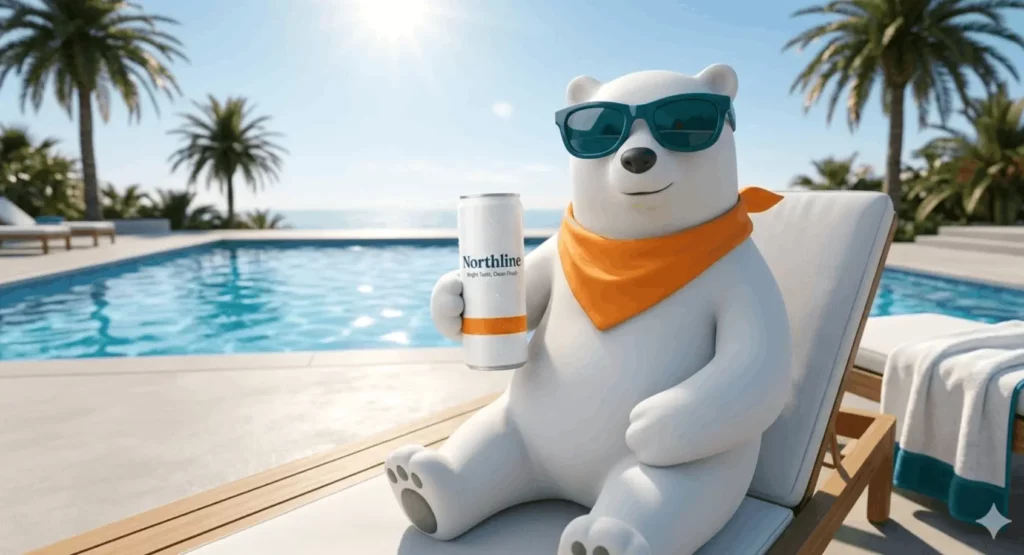
For example, I created this mascot reference image of a bear with sunglasses and the brand colors.
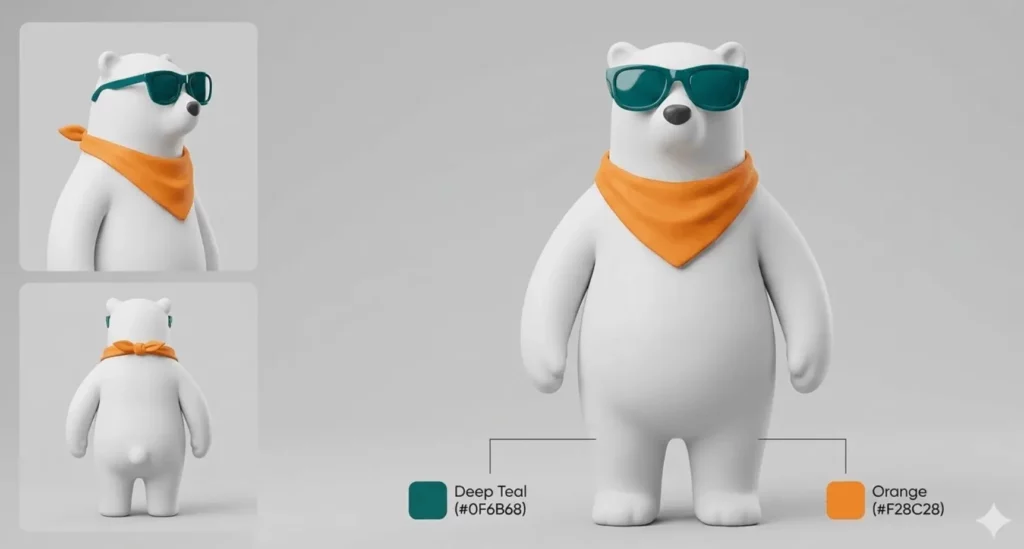
This became the reference image, combined with the product image, to create a final campaign image of the mascot holding the product in a summer setting.
Logo reference
A logo reference should control the mark itself, not the whole design.
Use a clean logo file for shape, spacing, and color, and use it when the logo appears outside the product label or needs to be clear in overlays, signage, or branded backgrounds.
Environment or style reference
The environment or style reference should control the setting, lighting, and mood. This helps consistency because it lets you vary the scene without changing the product identity.
Use one or two approved lifestyle images that show the kind of environment you want, but don’t let those images replace the product reference.
For example, I changed the previous image of the mascot by the pool to include a sunset scene in the background and changed the overall hue and tone of the image.
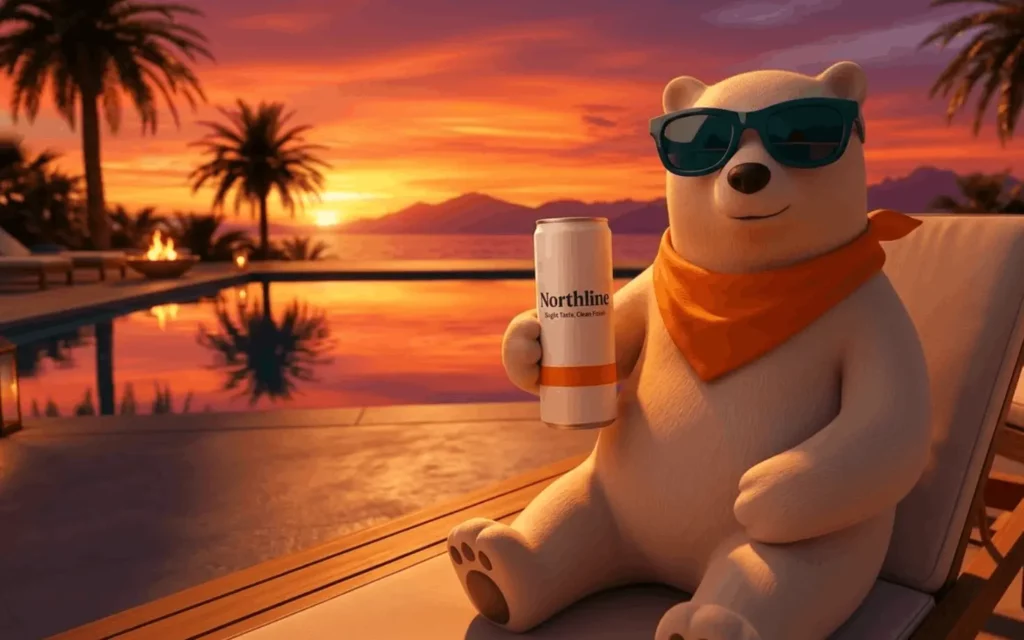
The main rule is simple: one reference, one job. When the product reference controls the can and the environment reference controls the scene, it becomes easier to change the setting without changing the brand.
How to Edit AI Images Without Regenerating
This is the main workflow for keeping Nano Banana 2 on-brand. A master asset gives the model one approved version of the product to build from. Editing from that image keeps more of the original decisions intact than starting over each time.
Create the base image
The base image should be the most accurate version of the product and layout you can get early in the process. This helps consistency because every later variation starts from an approved visual target instead of a fresh interpretation.
Create or use one clean hero image first. This was the image I created earlier – Northline can image on a simple light background with the full label visible. This is the master asset for the campaign.
Change only one variable at a time
One change at a time makes drift easier to control. If you change the background, crop, text, and style in one prompt, you won’t know which change caused the product to change.
Edit in steps. Change the background first. Then test a vertical crop. Then add campaign text if needed.
Use ‘keep everything else the same’
That phrase reduces unnecessary changes. It tells Nano Banana 2 to treat the approved asset as the default and only update the part you named.
State the exact change, then tell the model to preserve the rest of the image.
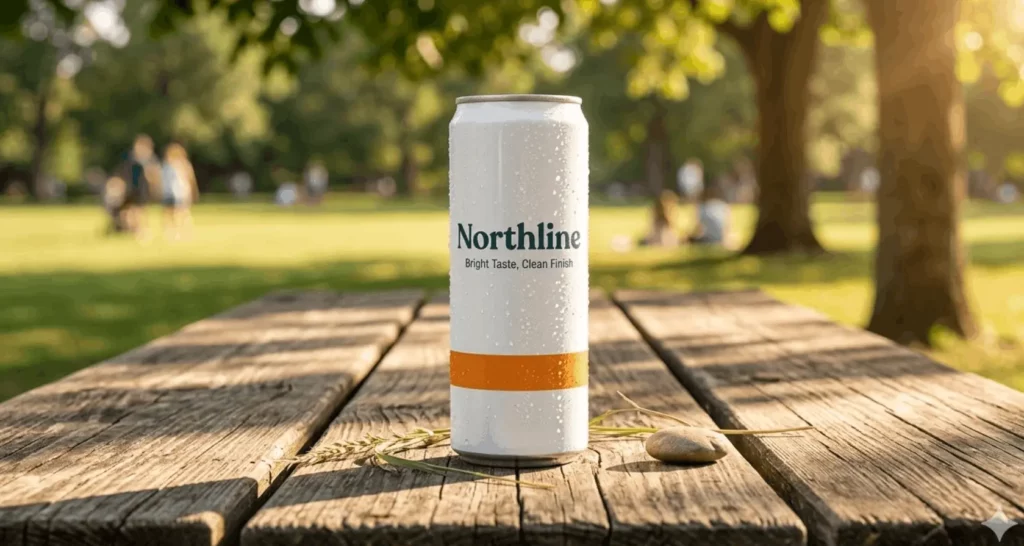
For example: ‘Place the Northline can on a picnic table in bright natural summer light. Keep everything else the same, including can shape, label layout, logo position, stripe placement, and tagline.’
Save approved versions as future anchors
Each approved version can become the starting point for the next asset. This helps consistency because you build from known-good images instead of returning to a less stable prompt chain.
Save the approved square version, vertical version, and lifestyle version as separate anchor assets.
How to Generate Consistent AI Text, Logos, and Packaging
Logos, packaging, and text break first when the workflow is bad. A product image can look good at a glance and still fail with spelling, spacing, font, etc.
Generate text first, then place it
Text works better when the wording is fixed before image production. By locking in the copy first, you remove the model’s urge to improvise, saving you from fixing weird typos later.
Lock the product text and campaign text before prompting. Use the approved wording every time.
Example: for Northline, I asked it to fix Bright Taste, Clean Finish as the can tagline and Shop the Summer Pack as the ad CTA before building the asset. Then to add the ‘Stay Cool’ text.
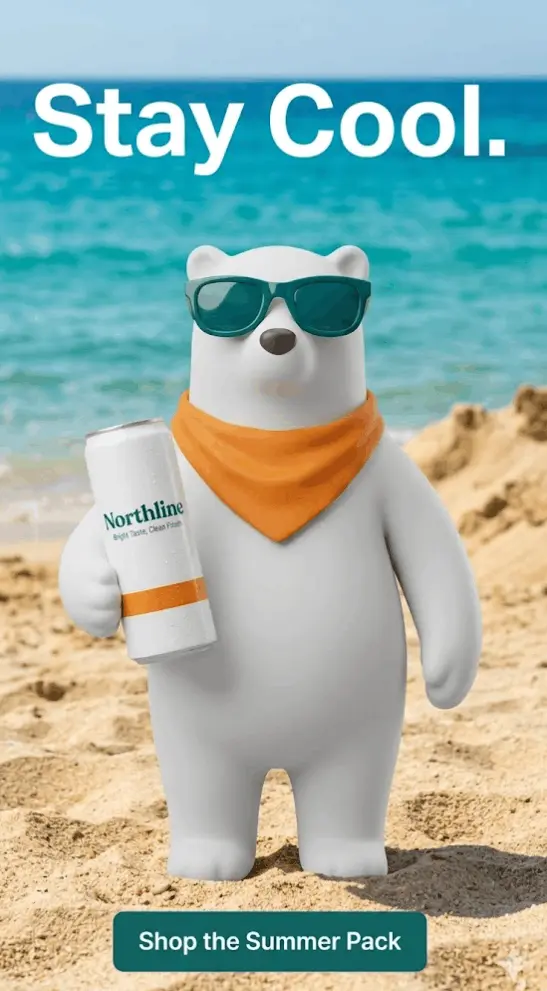
Prompting different words, text, and placements increases the chances of failure, unless it’s done clearly.
Be exact with font style and wording
Exact wording and simple font direction reduce variation.
State the exact words, case, and basic font style. Keep the instruction literal.
Example: ‘Use the exact tagline Bright Taste, Clean Finish in a clean geometric sans-serif style. Don’t rewrite or shorten the line.’
Treat logos as locked elements
The logo should not be open for interpretation. This helps consistency because the model may otherwise restyle, distort, or reposition the mark.
Treat the logo like a fixed asset. Tell Nano Banana 2 to preserve the logo shape, placement, and color.
Example: for Northline, keep the deep teal wordmark centered on the front of the can and don’t change its scale or position.
Standardizing AI Image Composition for Cross-Channel Marketing
Brand consistency also requires framing controls. The product can stay correct, while the asset still comes out inconsistent because the crop, lighting, and scene logic change too much from one channel to the next.
Set shot type and camera language
Shot type controls how the product appears across assets. This helps consistency because the same product can feel like a different brand when one image is a flat lay, another is a dramatic close-up, and another is a wide lifestyle shot.
Define the main shot types before production. Keep the camera direction simple and repeatable.
Example: for Northline, use straight-on product shots for email headers, 45-degree lifestyle shots for paid social, and top-down flat lays for blog graphics. Don’t mix random angles inside the same campaign.
Reuse lighting and background rules
Lighting and background control the look of the campaign. Scene changes often create more visual drift than the product itself, so this helps with consistency.
Set a small number of lighting and background rules and reuse them across channels.
Example: Northline uses bright natural light, soft shadows, and clean summer backgrounds with teal and orange accents. That rule stays the same whether the asset is a square ad or a blog header.
Pick aspect ratios by channel before production
Aspect ratio affects layout, crop, and subject size. This helps prevent the product from getting stretched, crowded, or pushed off-center when adapting sizes.
It’s best to decide the main channel formats before generating assets.
Example: Northline plans square for Instagram feed, vertical for Stories, and wide horizontal for blog headers. Each format is defined before the first round of generation.
Resize with the same subject logic
Resizing should follow one rule for subject placement. This prevents disconnection when the product is large and centered in one asset, then tiny and off to the side in the next for no clear reason.
Keep the same placement logic across formats unless the channel requires a change.
Example: in every Northline asset, the can stays as the main focal point with clear label visibility. The crop changes by channel, but the product still holds the same visual priority
Using Google Search Grounding for Accurate AI Scene Generation
Grounding is the AI’s ability to cross-reference live Google Search data to ensure factual and spatial accuracy. It’s useful when the image needs current or place-specific facts.
Localized scenes
Use grounding when the scene needs to match a real place or local context.
Example: if the Northline campaign needs a summer ad specific to Miami or Paris, grounding can help the model build a scene that matches that location closely. The can design should still come from Northline’s own references.
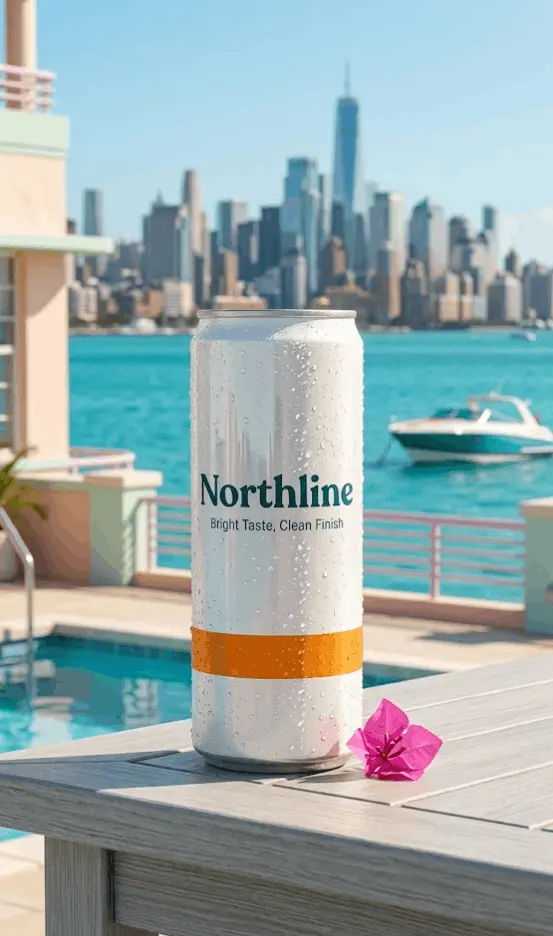
Real landmarks
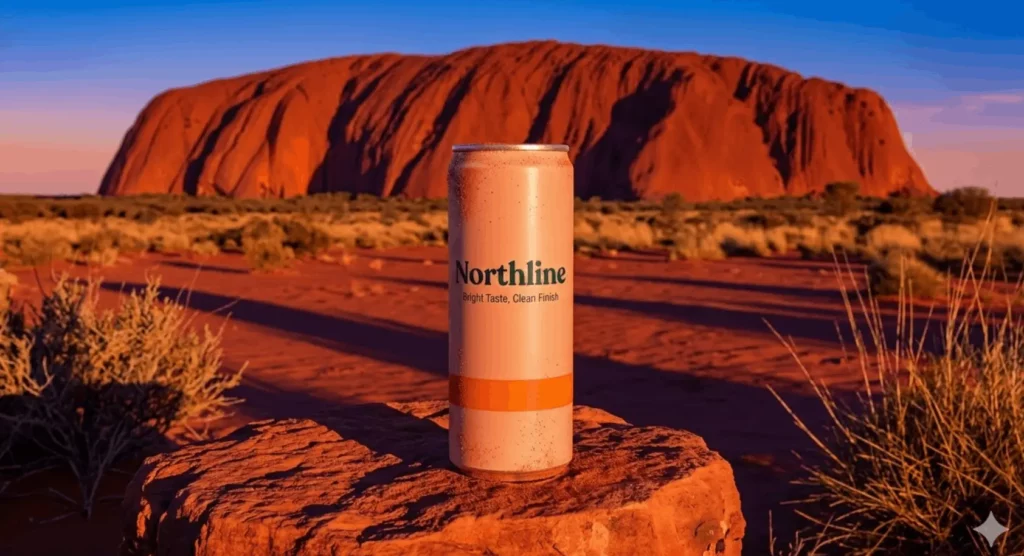
Use grounding when a branded image includes a real landmark. This helps accuracy because the landmark should match the real structure.
Example: if Northline wants the can placed near a recognizable location (like Uluru in Australia), grounding can support the landmark details. The product identity should still come from the approved can reference.
Current events
Use grounding when the creative depends on something current. This helps accuracy because the model can use fresher information than its base training alone.
Example: if Northline makes a quick visual tied to a current summer event, grounding can help with the event context.
Data visuals
Use grounding when the image includes factual data. This helps accuracy because numbers, trends, and labels should come from a source.
Example: if Northline creates a graphic around summer beverage trends, grounding can support the factual side of the visual.
The main rule is to use grounding for the world around the brand, not for the brand itself. Search can help with place, timing, and facts. The product, logo, colors, and packaging rules should still come from the company.
Use Nano Banana Pro for the Final Pass
Nano Banana 2 is the fast workflow. Nano Banana Pro is for when the image is almost right but still misses small brand details.
To do this, open the three-dot menu on the result, and choose Redo with Pro. Nano Banana Pro can add more detail, especially for text rendering and infographics, and the current Gemini plan has Pro for Google AI Plus, Pro, and Ultra plans.
For marketers, this fits at the end of the workflow. Build the first version in Nano Banana 2, get the composition and product right, then use Pro only when the last 5% still needs work.
That’s the point where tiny logo edges, packaging text, and other high-fidelity details usually matter most.
A simple rule is:
- Generate the base asset in Nano Banana 2
- Review the image for small brand errors
- Use Redo with Pro when the image is close but not publication-ready
- Recheck text, logo detail, and packaging before export
A Simple Nano Banana 2 Checklist for Every Asset
A QA checklist catches small brand errors before they become campaign problems. No matter how confident you are in the process, always QA every asset thoroughly.
- Would a designer approve this without edits? Use this as the final filter. If a designer would still flag the logo, label, crop, or text, the asset isn’t ready.
- Is the product shape correct? Check that the product still matches the approved reference.
- Is the logo unchanged? Check that the logo still matches the approved mark in shape, position, and color.
- Is the text exact? Check that all visible copy matches the approved wording exactly.
- Are the brand colors close enough? Check that the colors still sit within the approved brand range.
- Does the layout match the channel template? Check that the crop, spacing, and text placement fit the intended format.
FAQ: Nano Banana 2 Brand Consistency
Keep the same approved reference images, reuse the same brand instruction block, and edit from one approved base image instead of generating each asset from scratch. That gives the model a stable visual target across the campaign.
Yes. It works well for multi-image consistency when the product reference stays fixed and changes are made in small edit steps. The more variables you change at once, the more likely the output is to drift.
It can handle multiple reference images in one workflow, including object and character references. That makes it useful for keeping products, logos, characters, and environments aligned in the same campaign.
Use a clear product reference, exact text, fixed brand colors, and explicit placement rules. Logos and packaging drift most when the prompt is vague or when the asset is regenerated from scratch instead of edited from an approved image.
It can handle text better than older image models, but exact wording still needs review. The safest workflow is to lock the copy first, generate the image, then check every visible word before publishing.
Edit the approved image when consistency matters. Editing keeps more of the product shape, label layout, and composition logic intact, while a fresh generation can reset those decisions.
Use Redo with Pro when the image is already close but still misses on small brand details like packaging text, infographic clarity, or fine logo edges. It works best as a final-pass step after the base image is approved.