
AI app builders can get you from idea to working app much faster than most people think. Plus – why pay for tools when you can just build them yourself, with no code experience?
That’s exactly what I set out to do: build a content calendar using ChatGPT and lovable.
As a solo content marketer, I avoid paying for tools and build things in spreadsheets. Although this can get messy, it lacks the ‘interactive’ elements that tools offer. So I decided to just build one myself.
Less complex than the likes of Notion and Airtable, more sophisticated than a spreadsheet.
In this guide, I’m going to show how to use Lovable to vibe code a simple content calendar, get it working, and publish it live.
Why Use Lovable?
Lovable is the most user-friendly way to build an app or tool. The process is simple, visual, and easy to follow, which makes it a good choice for beginners or people who don’t know how to code.
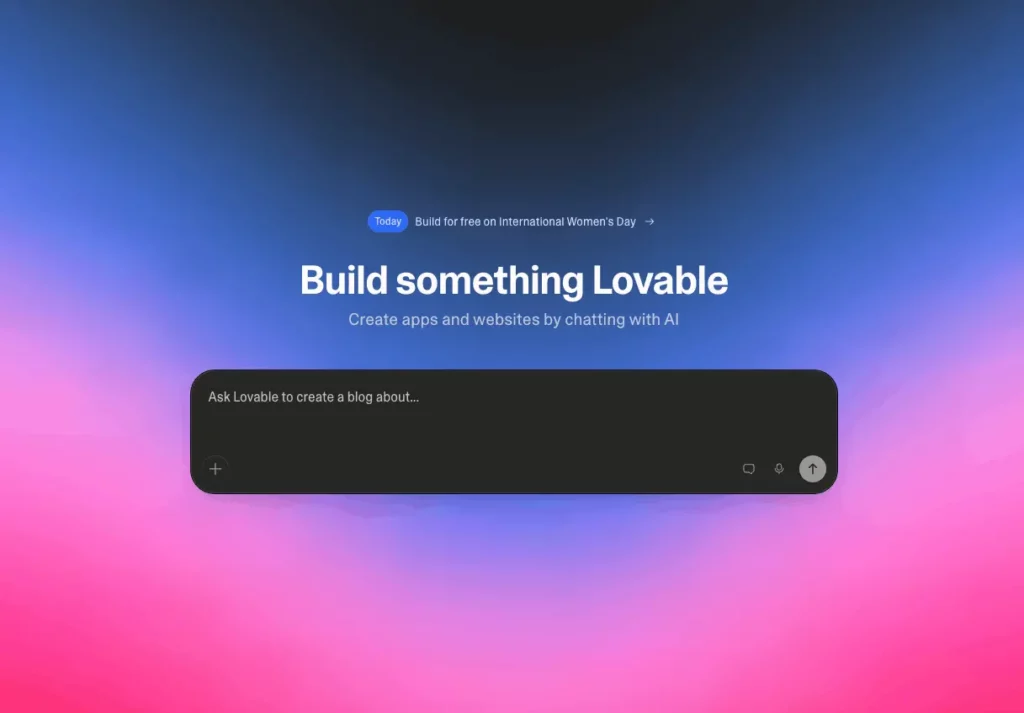
You could build with ChatGPT, but that route is more technical. It usually means handling more code, more setup, and more debugging. It can be done, but it’s not the easiest path for someone who wants to build something quickly.
If you’re already in the Anthropic ecosystem and use Claude Code, then you can do it directly there or connect through the API. Although this is more for developers who like the terminal, Lovable is the visual version of that experience.
Lovable works better because instead of managing a full coding workflow, you can focus on the app itself, see what works, and improve it step by step – in one display screen.
For this workflow, ChatGPT works best on the planning side and Lovable as the build tool. ChatGPT helps with the planning and iterations. Lovable turns that plan into something working.
Goal of This Build
The goal was to build a simple front-end content calendar for a solo marketer meant to make content planning easier without turning the process into a full software project. It gives one person a place to capture ideas, organize them, and see what is coming up.
I built it to show that AI can turn an idea into a tool without knowing how to code or pay for expensive software. That was the real test. I wanted to see how far a simple idea could go with the right scope, the right prompts, and a tool that makes building more accessible.
The app includes the core features needed to make content planning easier without adding too much complexity:
- Content ideas
- Title, date, channel, status, type, funnel stage, owner, CTA, and notes
- Calendar view
- List view
- Editing and deleting
- A backlog for unscheduled ideas
- Local storage in the browser
It is also important to be clear about what this version is not meant for:
- A full SaaS product
- A shared multi-user app
- A database-backed production tool
- Complex permissions or auth
- Cross-device sync
- Serious team workflows
How to Build a Content Calendar in Lovable
Plan what you want the app to do
Start by defining the app before you build anything. If you jump straight in with a messy idea, it will take longer to fix if AI builds the first version incorrectly.
For this project, I used ChatGPT to think through the product, decide which features belonged in version one, and improve the prompts before moving into Lovable. That gave the build a cleaner starting point and made the first output more useful.

I want to build a simple frontend-first web app called Content Calendar for solo marketers and small content teams.

The goal is to create a clean MVP for planning and tracking content. Keep it lightweight and beginner-friendly.

Core functionality:
- monthly calendar view
- list view toggle
- add, edit, and delete content items
- filter by channel and status
- save data in browser local storage
- export content items to CSV

Each content item should include:
- title
- publish date
- channel
- status
- content type
- funnel stage
- owner
- CTA/goal
- notes

Use these options:
- Status: Idea, Planned, In Progress, Scheduled, Published
- Channel: Blog, Newsletter, LinkedIn, X, YouTube, Other
- Content type: Article, Newsletter, Social Post, Video, Landing Page, Case Study
- Funnel stage: TOFU, MOFU, BOFU

Design requirements:
- modern and minimal
- clean spacing
- easy to scan
- responsive layout
- simple form UI
- clear labels and filters
- no clutter

Do not include:
- login
- backend
- database
- payments
- team permissions
- AI writing tools
- advanced analytics
- complex automations

Before building, break this into 4 to 6 implementation steps.
Recommend the simplest MVP build order using a frontend-first approach with local mock/local data only.
You can also do this planning directly in Lovable if you want to keep everything in one place. The important part is not which tool you use first. The important part is taking a few minutes to define what the app should do, what it should leave out, and what problem it is solving.
That planning step is easy to skip, but it makes a big difference. Vague app ideas usually create vague results. Clear scope creates a better first build.
Decide what version one needs
Keep version one small. The goal at this stage is not to build every feature a content tool could possibly need. The goal is to create a simple app that covers the core planning workflow and gives Lovable a realistic brief to work from.
It’s better to build a low-quality but functional first version to improve upon than build a gold standard version with every feature possible, which requires hundreds of tiny fixes.
For this build, that meant focusing on the basics: capturing content ideas, adding key information, and showing them in a way to make planning easier. It also meant leaving out anything that would push the app into full product territory, like login, a backend, payments, analytics, or team permissions.
Generate the first version in Lovable
Once the scope is clear, use Lovable to generate the first version. You simply enter your prompt from ChatGPT or do one manually in Lovable, and this will give you the first visible prototype.
It’s enough to show the structure of the app and make the next round of changes much easier.
This was the first version I created. It’s a basic calendar. Very small. You can’t click any boxes. At first glance, this is plain and boring; there isn’t much difference to using a spreadsheet.

Spend some time here making notes of what you want to change. I would break these into buckets: One for major changes that will impact functionality. One for minor changes like font or color etc.
The reason for doing this is that if you end up with 30+ changes, prompting for all of those at once will be too complex, and Lovable might miss details. So you save the small edits for the end.
Add the first useful improvements
The next step is to add your first iterations. For this build, that meant turning the calendar from a static and plain view into something more interactive.
These changes included:
- Clickable dates
- Editable items
- Drag and drop
- Filters that actually worked
- List and calendar views that stayed in sync
As you can see in the image, there are now more refined features. I can click the date and add content directly, there are working filters and total numbers of what’s planned.

Then the ‘add an item’ lightbox included more features. I didn’t want to overcomplicate this; it includes the necessary fields for my workflow. If you build this, you can add as many fields as necessary.

This is the point where the app starts feeling usable instead of just looking like a layout. The structure was already there, but these changes made it work like a planning tool.
Add extra features you want
Once you do a round of improvements, you can then focus on adding additional features. In this build, I wanted a holding column for ideas that didn’t have a date yet, useful for my planning workflow.
That meant adding:
- A left sidebar or backlog for unscheduled ideas
- The ability to create ideas without choosing a date first
- Drag and drop from the backlog onto the calendar
- Drag and drop back into the backlog to remove a publish date
These extra changes delivered what my spreadsheet was missing. In one view, I could now see the content that needs to be planned and the current planned content.
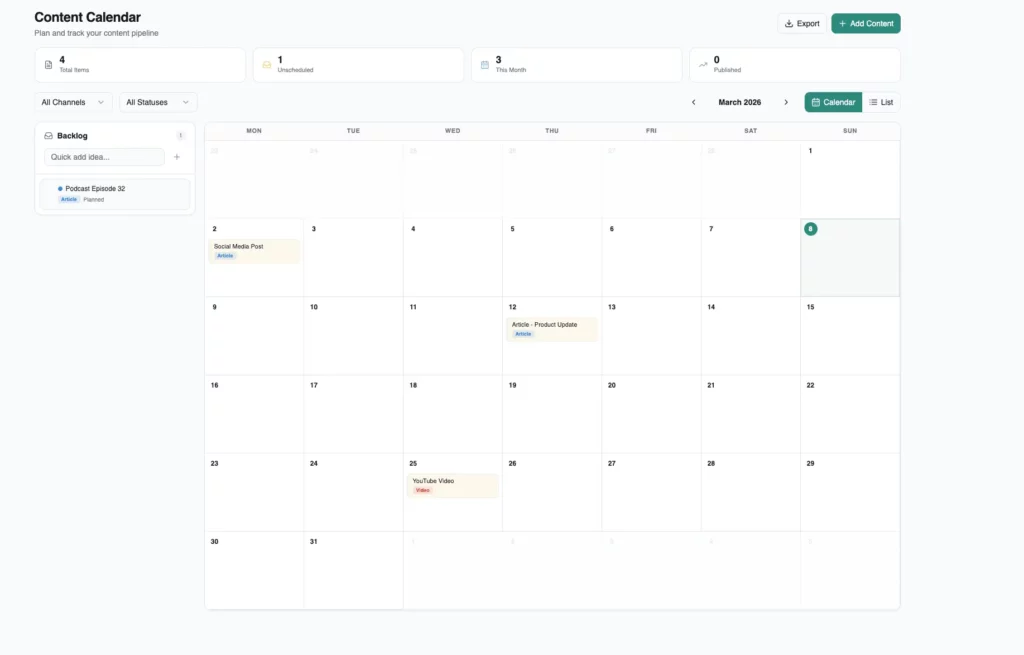
A backlog makes the app feel much closer to a real workflow, because not every idea is ready to go straight onto the calendar.
Improve the visual design
Once the main build is done, the next job is making the app better visually. This would be the small design bucket of changes you made on the first output. In this instance, the main improvements were:
- Cards that were easier to scan
- Stronger contrast
- Clearer status colors
- Better visual hierarchy
- Less of the blank spreadsheet feel
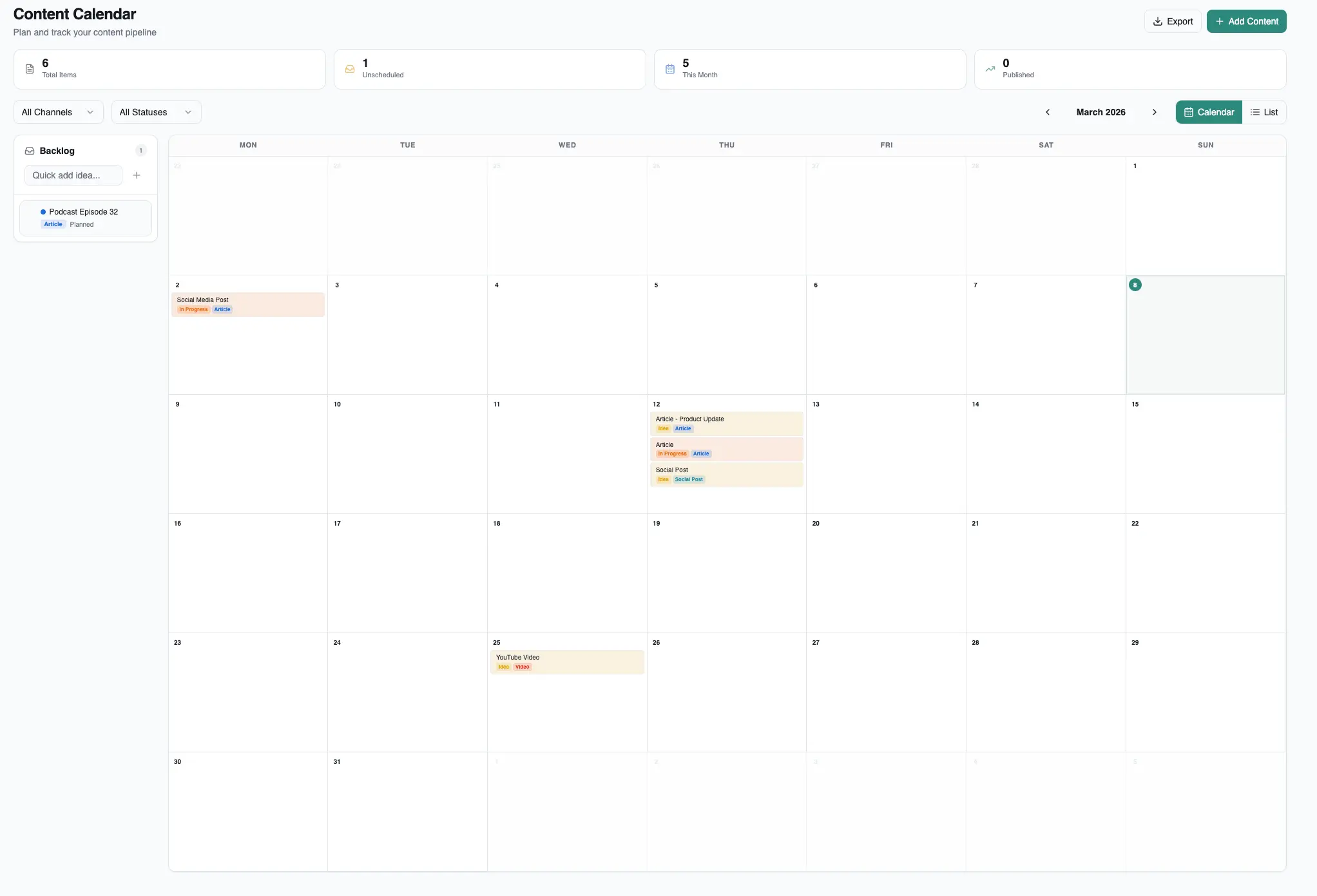
One useful change here. was separating the ‘status’ styling from ‘content type’ badges. Status controlled the main card styling, while content type became its own label. That made the interface easier to read.
Test and make final tweaks
After the final changes have been processed, you should start testing the different features. You will find certain things that need improving, so build a list again and make the changes ready for the final version.
Once the app worked, most of the final improvements were about layout. That meant:
- Making better use of desktop space
- Keeping the calendar large enough to work in
- Keeping cards compact enough to scan quickly
- Showing enough metadata without making the month view messy
What the finished app can do
The finished app is a front-end-only content calendar built for simple planning. It includes:
- A month view plus backlog
- Drag-and-drop scheduling
- Editable content items
- Status colors
- Content-type badges
- Local browser storage
This final version is populated and functions effectively. It’s perfect for my use case and an example of small things you can build to have your own marketing tool stack.
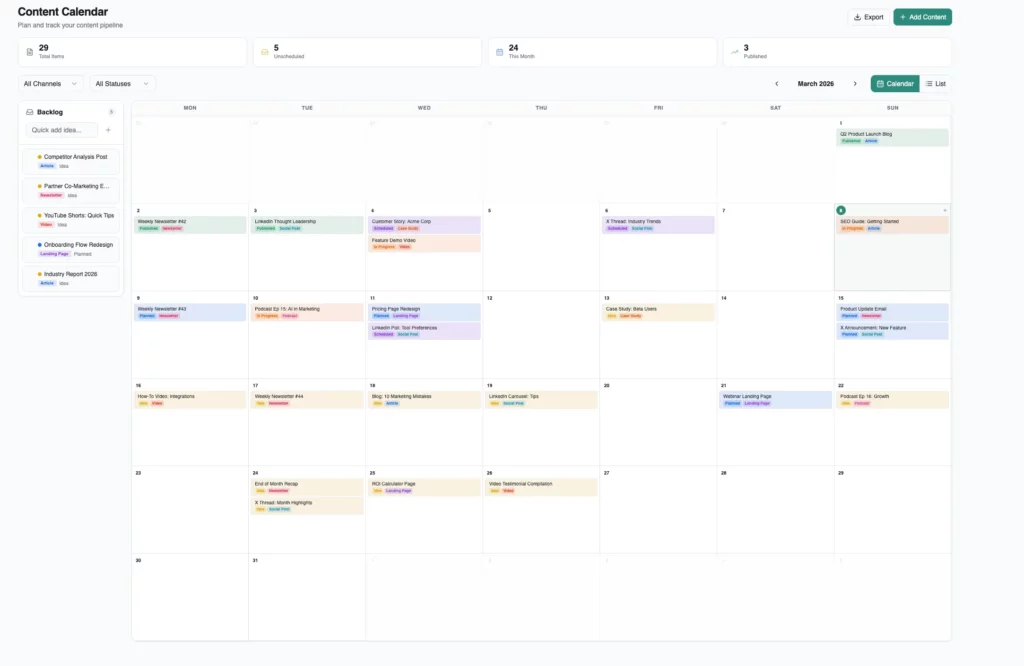
To be clear on this build: This is only for solo use cases and just to show the workflow. There are more complex builds with databases and better functionality. This version only works using local browser storage.
For team and business use, you should eventually ask Lovable to ‘Connect a Supabase database’ (which Lovable handles natively and easily) so data is saved to the cloud.
How to Take Your Lovable App Live
Publishing turns the app into something people can actually open and use. For this project, I recommend two options: Publish directly from Lovable for speed, or push the code to GitHub and deploy with Vercel for more control.
Option 1: Publish with Lovable
This is the fastest option. In Lovable, open the project, click Publish in the top-right corner, choose the published URL, review the settings, and publish the app. Lovable deploys a snapshot of the current version, which means later changes do not go live automatically. To push updates, you need to publish again with Publish → Update.
Lovable is the easiest option for beginners because the build and publish steps stay in one place. On Lovable Free and Pro, anyone with the link can visit the published app. If you want a custom domain inside Lovable, that is a Pro feature rather than a free-plan feature.
Option 2: Deploy with GitHub and Vercel
This is the better option when you want a more standard deployment workflow. The usual path is: sync or export the project to GitHub, create a new project in Vercel, import the repository, let Vercel detect the framework and build settings, and click Deploy. After that, new pushes to the connected repo can trigger new deployments automatically.
Vercel is a good fit when you want more control over deployment. The Hobby plan is free forever, so it is a strong no-cost option for personal projects and lightweight apps.
Tips for Lovable
Start small and iterate
Small, focused prompts work better than one giant prompt. When a prompt tries to handle layout, interactions, styling, filters, labels, and spacing all at once, Lovable will usually get some of it right and miss some of it completely.
Breaking the build into stages gives you more control. For this project, it worked better to improve one part at a time: first interaction, then backlog, then styling, then layout. That was one of the biggest lessons from the build.
Be specific about what should change
Lovable works better when the prompt is clear about the problem. Say what needs to change, say what should stay the same, and say what should not be redesigned. Vague direction usually leads to broad changes you didn’t ask for.
Expect overcorrection
Lovable will often fix one problem by creating another. Stronger labels can become too bulky. More compact cards can hide too much. Stronger colors can reduce clarity somewhere else.
That’s normal. The point is not to expect a perfect result in one pass. The point is to keep adjusting until it’s right.
Use ChatGPT to improve prompts
ChatGPT is useful for turning ideas into instructions before you send them into Lovable. It helps define the scope, improve the wording, and make the prompt more precise.
You can do the whole process in Lovable if you want to keep it simple. But ChatGPT makes the workflow easier as it helps clean up the thinking before the build starts.
Treat the first version as a draft
The first version gives you momentum, not perfection. Its job is to give you something to react to. The real progress comes from looking at what Lovable made, spotting what feels off, and improving it step by step.
Here is the link to take a look at the build yourself and see what it does.