

AI search is much harder to track than organic search. In search, you can look at rankings, clicks, and landing page data. In AI search, you have to pay hundreds of dollars for a tool or tools that provide (not 100% accurate) insights.
But paying for shiny new AI tools to track AI performance isn’t in everyone’s budget.
Don’t worry, there’s a way to see how AI systems are accessing and using your content without paying. Through server logs.
Server logs show which pages AI systems request and what your site returns when they do. They won’t tell you the prompt or confirm that a page was cited, but they can show which pages are being pulled in, which ones are being ignored, and if technical issues are getting in the way.
For this article, I am looking at Cloudflare specifically. Server logs are the source of the data, and Cloudflare built AI dashboards that turn this data into a more digestible format.
What Server Logs Can Show You About AI Search
A server log (or AI Crawl Control) is just a record of requests made to your site. In this case, it can show when an AI crawler or other system requests a page, which pages it requests most often, and whether those pages load properly or return an error.
For understanding AI search performance, if the same pages keep getting requested by AI systems, it’s a sign that those pages are at least being considered for use in AI answers.
Logs are useful for marketers because they offer insights that regular analytics can’t:
- Which pages AI systems request most often
- Which important pages they don’t seem to request
- Which pages return errors or other bad responses
- Which sections of the site keep coming up
- Whether the pages you want cited are the ones getting checked
This gives you something you can act on. On a deeper level, you can start looking at the topical areas and content types, and correlate them with which pages already perform well, and so on.
There are limitations, though. A server log can’t tell you the prompt or confirm that a page was cited in a final answer. But it can show activity that you won’t get through regular search analytics.
Understand the difference between AI search and traditional search.
So here’s how to find and use that data with Cloudflare.
Step 1: Open AI Crawl Control
The first step is to log into your Cloudflare account.
Cloudflare dashboard → select your domain → AI Crawl Control

That opens the main Overview dashboard you will use for the rest of the process. This gives you a good idea of AI crawler activity in general.
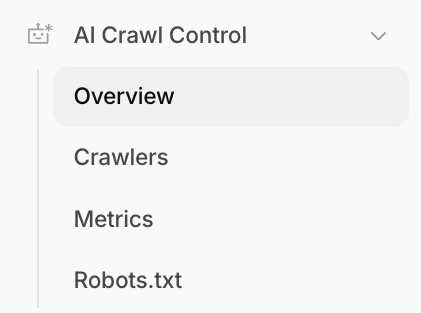
You’ll have 4 tabs to look at, 3 of which are necessary for this article:
- Overview gives you an overall picture.
- Crawlers shows which AI crawlers are accessing the site.
- Metrics is where you dig into requests, paths, status codes, and trends.
- Robots.txt is there as a control point, but for this workflow it’s not necessary.
Now you’re in the dashboard, let’s have a look at what to do.
Step 2: Use the Overview Tab to Analyze and Control How AI Crawlers Access Your Content
Start with the Summary box. This shows the AI crawler activity on the site. It also shows how much activity there has been in the selected period, whether that activity has changed compared with the previous period, which path is being crawled most, and the top crawler.
This is just a quick way to see any patterns or issues at a glance.

There are filters for the Overview tab, where you can break down by crawler, bot, date etc., but this is only necessary if you are looking for something specific.

Then look at the three metric cards underneath: Total requests, Allowed requests, and Unsuccessful requests. These numbers tell you how much AI crawler activity the site is getting, how much of that activity is reaching the site with problems, and whether there may be problems worth checking later.

At this stage it’s a simple glance at the data where you can focus on four things:
- The overall level of AI crawler activity
- Whether activity is rising or falling
- The path getting crawled most
- Whether unsuccessful requests look high enough to investigate later
Step 3: Use the Crawlers Tab to See Which AI System Is Accessing Your Site
The Crawlers tab shows which AI systems are hitting the site.
Start by reviewing the full table. Here you can see which crawlers are most active, how many requests they are making, how much data they are pulling, and what Cloudflare is doing with those requests.
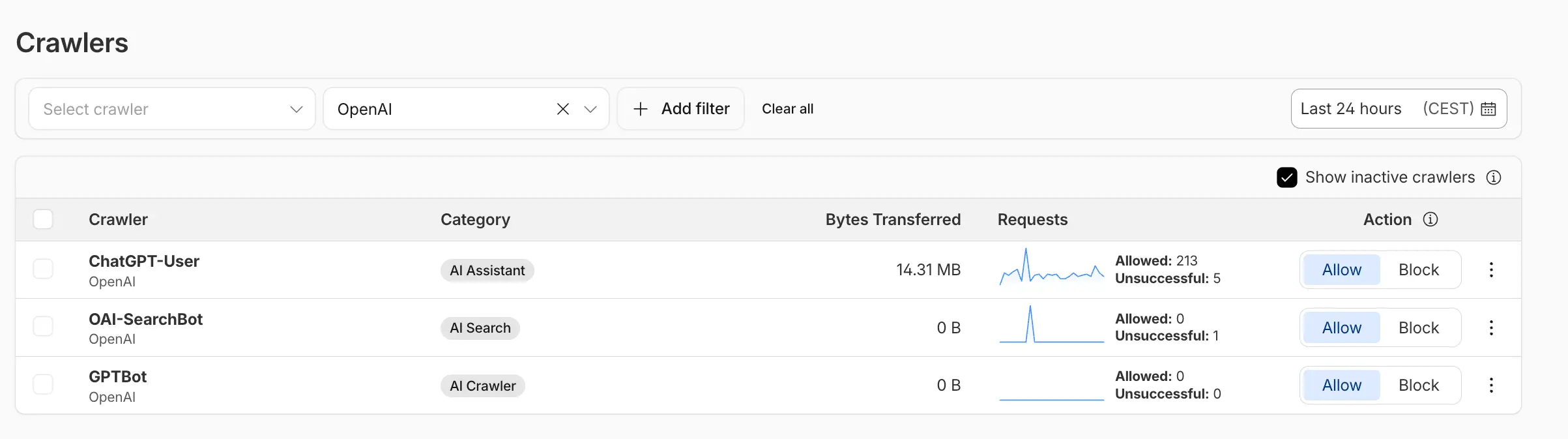
Again, if you need to, use the crawler filter when you want to isolate one named crawler. Use the operator filter when you want to group activity by platform. That makes it easier to separate crawlers from the bigger pattern.
Also, check the Show inactive crawlers toggle. That shows which crawlers have appeared before but are not active in the current view.
You can quick-toggle and block or allow crawlers from here too.
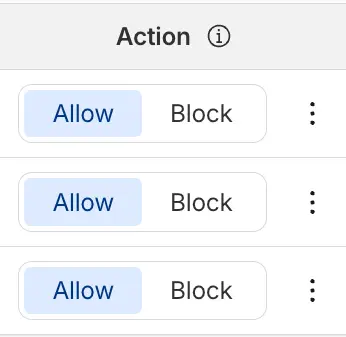
This tab tells you who is involved and helps you spot any issues. If one crawler has lots of requests but a weaker split between allowed and unsuccessful requests, that is something to check when you move into the metrics and path-level views.
Dive deeper into this data
If you click the 3 dots next to the crawler, there are some more options. Metrics I will cover further down, but ‘View on Cloudflare Radar’ is what I want to focus on here.
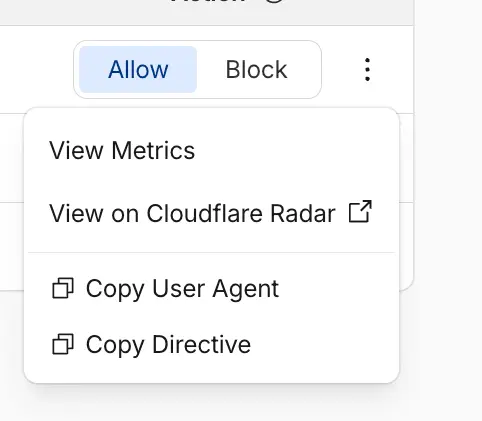
Clicking this allows you to learn more specifics about individual crawlers.
Here you will see the purpose of the crawler, where, for example, search, assistant, or AI crawler can imply different behavior. That helps with prioritization. A search-oriented bot points you toward discoverability and strong landing pages. An assistant-style bot points you toward answer-ready pages and referral traffic.

A crawler that mostly pulls HTML tells you the page structure is working best. If a bot is pulling a mix of documents, images, or JSON, it shows other content types that AI systems are accessing and new opportunities.
The use for marketers is judgment. Use Radar to decide whether a bot is worth tracking, whether it’s tied to AI search or something else, and whether its activity aligns with the pages you want to be pulled.
The traffic trend helps you tell the difference between regular activity and a short spike. The content-type mix helps you see whether that bot mostly consumes normal web pages or different assets.
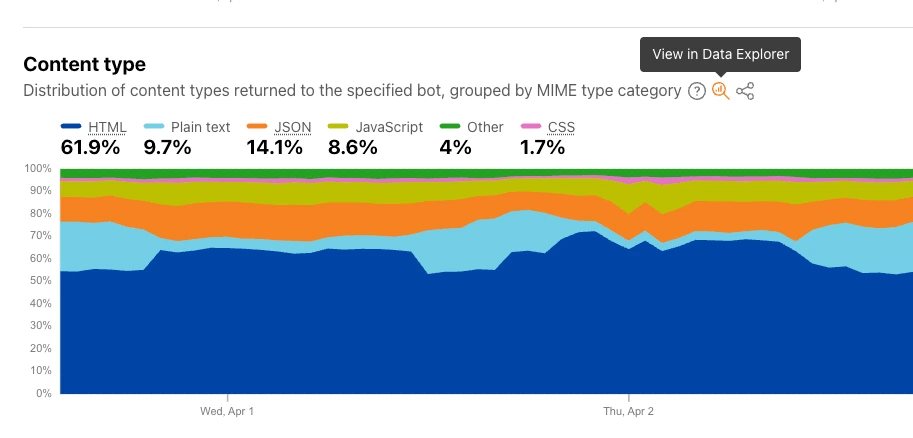
If you click ‘View in Data Explorer,’ it opens up worldwide data for benchmarking.

These filters let you break down AI bot data by time period (date range), specific bot (user agent), the bot’s stated use (crawl purpose, such as search, training, or user action), and market categories (vertical and industry).
For marketers, it’s useful for benchmarking and context: you can compare how different AI bots act, see whether activity is rising or falling, and check whether patterns change by purpose or market.
Step 4: Use Metrics to See What URLs Crawlers Are Using
The Metrics tab is the most useful for AI search and covers which URLs are accessed by AI bots. A note on this, if you are on the free plan, you will only see data from the past 24 hours.
To start with there’s a filter search, and I’m using ChatGPT/OpenAI as the example because it’s the most used LLM.

- OAI-SearchBot: Most relevant to AI search visibility and citations. Essential if you want your site content included in ChatGPT search summaries and snippets, and publishers who allow it can track referral traffic from ChatGPT search. Learn more about Open AI bots.
- ChatGPT-User: This is user-triggered, not a background search crawl. It might visit a page when a user asks ChatGPT or a Custom GPT a question, and it’s not used for automatic web crawling or for deciding whether content appears in Search.
- GPTBot: A training crawler. Used to crawl content that may be used to make its foundation models more useful and safe, and blocking GPTBot is the way to opt out of that training use.
- Similarly, Google uses Google-Extended and the newly added Google-Agent to handle AI integration and crawling.
If you aren’t showing up in AI search and have the OAI-SearchBot blocked, then that could be a reason.
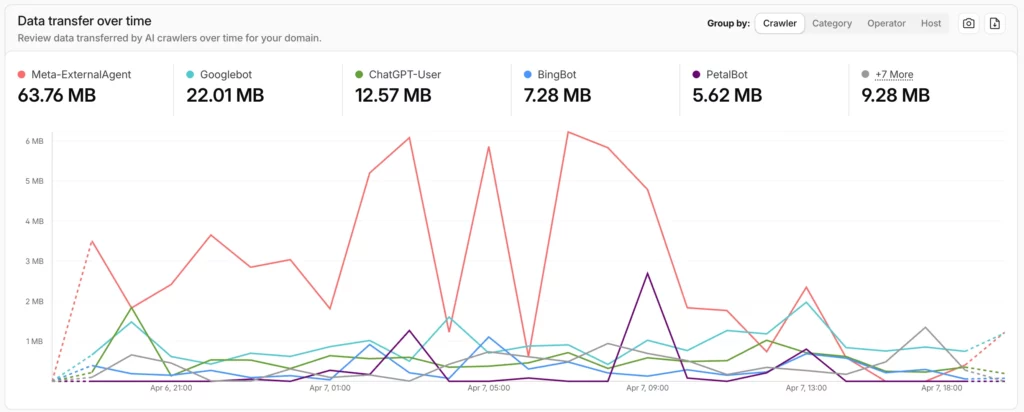
Then you have Requests over time and Data transfer over time. Together, they tell you which crawlers are making the most requests, which ones are pulling the most data, and whether the activity is concentrated in one crawler or spread across several.

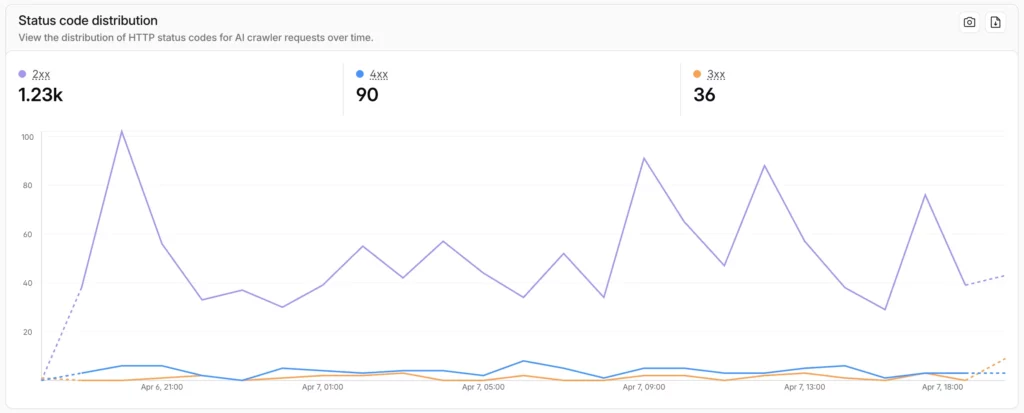
This is also the place to check response patterns. Use the controls to switch between 2xx, 3xx, 4xx, and 5xx for different bots.
Then there’s Status code distribution, which is a higher-level overview:
- 2xx are the clean requests. They show the pages AI crawlers are reaching successfully.
- 3xx, 4xx, and 5xx tell you whether some of the pages getting crawler attention are redirecting too much, returning errors, or failing outright.
The 3xx errors also suggest that the AI bot is using an old index. If an AI bot is hitting redirects, it means the memory of the AI is outdated. So update your internal links so the AI finds the 200-status page directly.
Then go to Most crawled paths. This is the table that shows which URLs AI crawlers request most often. Start with the pages at the top. Those are the pages most worth reviewing because they are the ones seeing repeated crawler activity.

After that, switch from Paths to Patterns. This moves from single URLs to repeated site sections. One page showing up is useful. A whole pattern like /blog/*, /docs/*, or /product/* is more useful because it tells you which kinds of content are attracting AI.
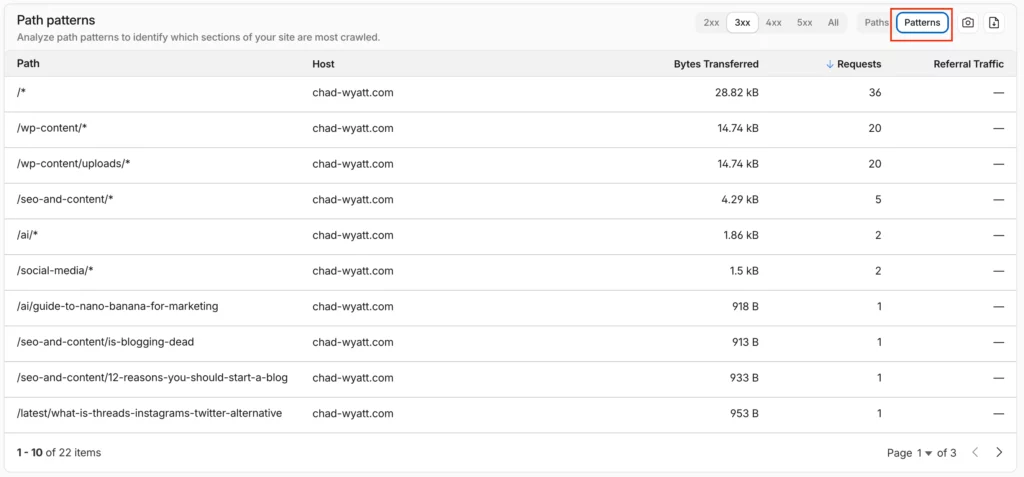
Focus on five things here:
- Pages with the most successful requests
- Pages with heavy redirect patterns
- Pages with client or server errors
- Repeated site sections, not just repeated URLs
- The Referral Traffic column in the paths table
This is where the workflow becomes useful for content decisions.
The status code view tells you whether crawler activity is resolving cleanly or running into problems. The paths table tells you which pages are actually coming up. The patterns view tells you whether the activity is concentrated in one page type or one section of the site.
Put together, that gives you a shortlist of pages and content types worth looking into.
Step 5: Export the Data and Turn It Into a Shortlist
Once you have filtered everything, export it. Use the download icon on the charts or tables, then move the export into a spreadsheet if that makes the review easier. The goal here is to turn the dashboard view into a working list of pages to check manually.
Start by sorting the export by request count. That brings the most active pages or patterns to the top. Then group the data in a few ways that make it easier to interpret: by crawler, by operator, and by page type.
Flag pages with heavy 3xx, 4xx, or 5xx patterns. Those pages may be attracting crawler attention, but something is blocking them.
- A heavy 3xx pattern can point to redirect chains or outdated URLs that still attract requests.
- A 4xx or 5xx pattern can point to broken access, missing pages, or server issues.
Fixing those problems can make content easier for AI crawlers to reach and reuse.
Then mark the pages that appear often and are important commercially. That’s where the value is: pages that already attract attention and support a product, category, use case, or key topic.
This is the point where the dashboard turns into a shortlist. It’s also the best place to use AI for speed. AI can help you group repeated URLs, cluster page types, and summarize which pages or site sections come up frequently.
Useful for sorting and pattern-finding – but the judgment still needs to come from you.
Step 6: Interpret the Data and Decide What to Fix and Improve
This is where you interpret the data and turn it into content decisions.
Start with the pattern, not the page.
A repeated folder, template, or topic is better to understand first. For example, say the activity is concentrated in a topic area like /ai/*, which my data shows:

That’s a sign AI systems might already see your site as a topical authority in that area. This is a sign to strengthen that cluster: update the best pages, improve internal links, remove overlap, and add missing supporting content around the same topic.
If the activity is concentrated in a format like glossary pages, comparisons, or how-to posts, treat that as a clue about the kind of content your site is easiest for AI systems to use. Build more of the format that is already showing traction.
The opposite pattern is also useful info. If the activity is concentrated in sections you wouldn’t choose, such as old blog posts, poor archive pages, media folders, or outdated topic hubs, that can mean crawlers are landing in the wrong place.
Then I would focus on improving internal linking toward the pages that are important. Update or merge low-quality pages that keep attracting attention. If older pages keep showing up instead of newer ones, the older pages may simply be clearer, better linked, or more established.
Don’t assume the newer page is better because of the date. Look at what the older page is doing right and transfer its strengths.
Use simple interpretation rules as you review the shortlist:
- If one topic cluster keeps appearing, strengthen that cluster first. Add supporting articles, improve cross-links, and make the best page in that area clearly better than the rest.
- If one content format keeps appearing, produce more of that format around your priority topics.
- If important commercial pages are missing, check whether your informational pages are doing all the work and your money pages are too weak, too thin, or too detached from the topic cluster.
- If outdated pages keep appearing, refresh them or replace them before they become a page AI systems return to.
- If redirects or errors show up around key sections, fix access before rewriting copy. A strong page that resolves badly will not perform.
- If crawler activity is high but referral traffic is low, content may be getting seen and cited but not earning clicks. That’s usually weak answers, poor page positioning, or a mismatch between the page and the likely user need.
- If referral traffic is present but engagement or conversion is weak, the page may be attracting the right systems but serving the wrong intent. Improve the path from informational content to the next step.
Of course, you will need to interpret this data your own way or ask AI to help.
What This Data Won’t Tell You
This process helps you to see signals, but it’s not certain data.
- It won’t prove that a page was cited in an AI answer.
- It won’t show the exact prompt that led to the page being requested.
- It also won’t give you a complete view across every AI platform, because not every system handles requests, referrals, or citations in the same way.
But still, the log-based approach is the most honest data you can get because it’s what actually happened on your server, not a third-party estimate.
FAQ
Cloudflare AI Crawl Control shows how AI crawlers interact with your site. It helps you see which crawlers are active, which pages or sections they request most, and whether those requests are resolving cleanly.
No. It can show that an AI crawler requested a page and returned to it more than once. It cannot confirm that the page was cited in a final AI answer.
Go to Metrics, then check Most crawled paths. Start with 2xx responses, then switch between Paths and Patterns to see both individual URLs and repeated site sections.
Allowed requests are crawler requests that reached the site successfully. Unsuccessful requests are requests that did not resolve cleanly. That split helps you tell the difference between healthy crawler activity and access problems.
OAI-SearchBot is the OpenAI crawler most closely tied to AI search. If you are looking at AI search visibility, this is usually the OpenAI bot that matters most.
ChatGPT-User usually means a user-triggered fetch. It is different from a background crawler because it is tied to a live user request.
A blank Referral Traffic column usually means Cloudflare is not showing AI-driven visits for that path in the selected view. Crawler requests and referral visits are different things, so a page can get crawler activity without showing referral traffic.
Crawler attention is not the same as content quality. A page can get more attention because it is easier to find, more clearly focused on a topic, better linked, or more frequently revisited.
Start with the pages or topic clusters that get repeated crawler activity. Then improve clarity, update outdated information, strengthen internal links, and fix pages with redirect or error patterns.
Treat those pages as a priority. Heavy 3xx patterns can point to redirects or outdated URLs. Heavy 4xx and 5xx patterns can point to broken access or server issues. Fixing them can make important content easier for AI crawlers to reach.
Not reliably. AI Crawl Control is better for page and section patterns than exact asset-level tracking.